Video Screen Recorder Guide — Record Your Screen in the Browser
An easy walkthrough explaining why THRJ's web-based Screen Recorder at /screen-recorder is often the better choice compared to native apps. No installs, no updates, and your recordings stay local — fast and privacy-friendly.
What Is a Web-Based Screen Recorder?
A web-based screen recorder runs entirely in your browser using standard web APIs. It captures the content of your screen, a specific application window, or a browser tab and encodes video locally without requiring software installation. Modern browsers provide performant recording capabilities that rival many lightweight native tools.
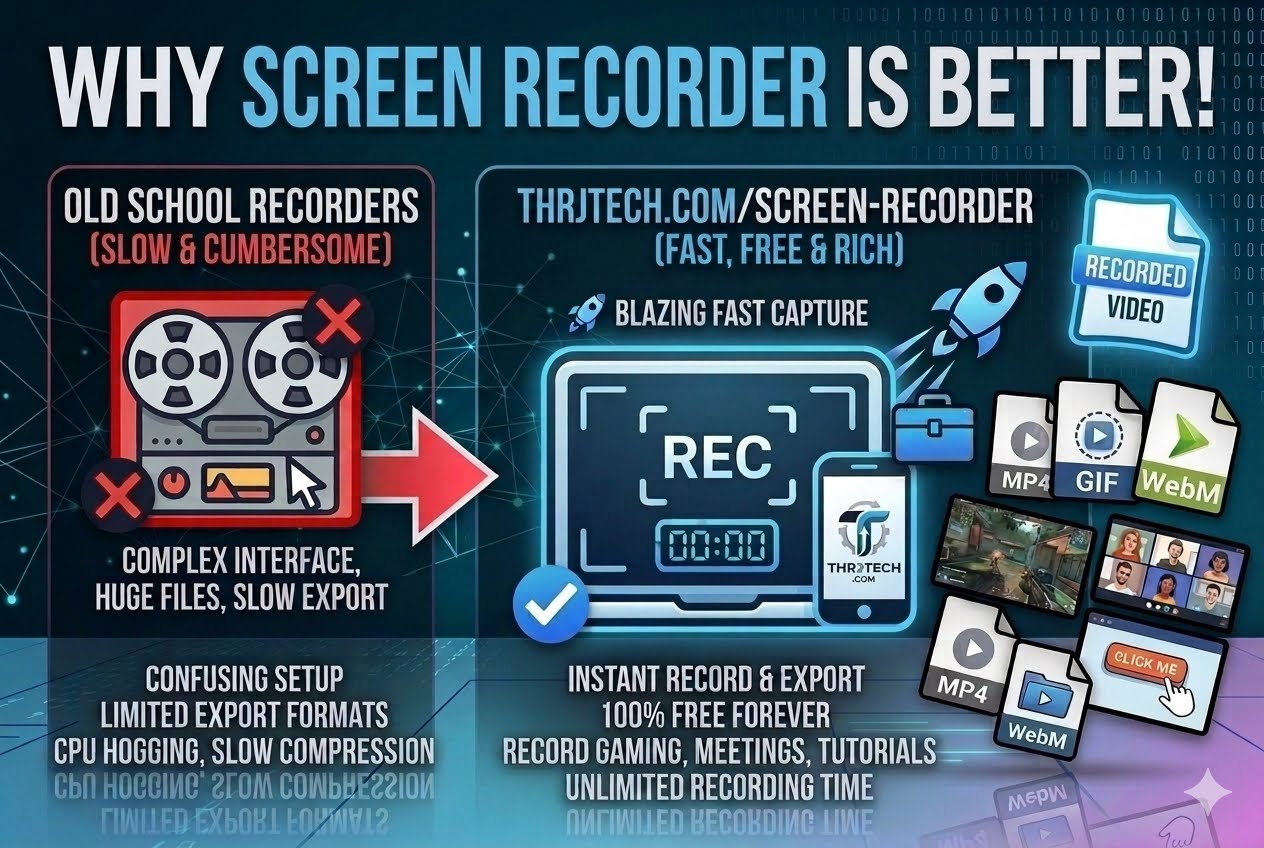
Why Choose a Browser Recorder?
- No installation: Start recording immediately from any modern browser — perfect for one-off captures and quick demos.
- Cross-platform: Works on Windows, macOS, Linux, Chromebooks, tablets, and many mobile browsers without separate builds.
- Privacy-first: Files are encoded in your browser. Nothing is uploaded unless you explicitly share it.
- Always up-to-date: Improvements to the recorder are available instantly — no manual updates required.
- Lightweight: No background services, launchers, or persistent processes cluttering your system.
Quick Steps
- Open the Screen Recorder from Tools → Screen Recorder or visit
/screen-recorder. - Choose what to record: entire screen, application window, or browser tab.
- Adjust audio sources (microphone, system audio) and set resolution if available.
- Click Start Recording, perform your actions, then click Stop when finished.
- Preview the recording and click Download to save a local video file.
Advantages Over Native Tools
- Faster access: No installers or setup — useful for remote support, interviews, and rapid demos.
- Consistent UI: The same experience across devices and OS versions reduces friction for teams and learners.
- Temporary use-cases: Great for users who only occasionally record and don't want a permanent app installed.
- Reduced permissions: Browsers isolate permissions per site and session, lowering long-term security risks compared to persistent native apps.
- Integration: Easily combine with other web tools like the THRJ uploader, editor, or converter without leaving the browser.
Tips and Best Practices
- Close unnecessary tabs and apps before recording to reduce distractions and lower CPU usage.
- Use a wired network for screen-sharing sessions — browser recorders perform best when system resources are available.
- If you need system audio on Windows, choose a browser and OS combination that supports system audio capture.
- Preview and trim short clips locally before sharing to remove mistakes and reduce file size.
Common Use Cases
Quick tutorials: Record short how-tos and share them instantly with teammates.
Bug reports: Capture exact reproduction steps and include the recording in an issue.
Remote interviews and demos: Show flows without asking participants to install software.
Classroom and training: Teachers can make short lesson clips using only a browser.
Exporting and Formats
The recorder exports standard video files (typically WebM or MP4 depending on browser support). Downloaded files are ready to upload to services like YouTube, Vimeo, or your LMS. If you need alternative formats or compression, use THRJ's converter and resizer tools after download.
Frequently Asked Questions
Is quality worse than native apps? Modern browsers offer high-quality captures; for very high bitrate or professional production workflows, dedicated native apps may provide more advanced encoding controls.
Does it record system audio? System audio capture depends on the browser and OS; microphone capture is broadly supported.
Are recordings uploaded automatically? No — recordings remain in your browser until you choose to download or explicitly upload them.
Can I edit the recording? You can trim short clips in many browsers or use THRJ's edit and converter tools after download.
Published by THRJ Tech