PDF Tools
All the PDF tools you need, running directly in your browser. Reduce file size before sending, combine scattered pages into one document, extract specific sections, or export pages as images — no sign-up, no uploads, nothing leaves your device.
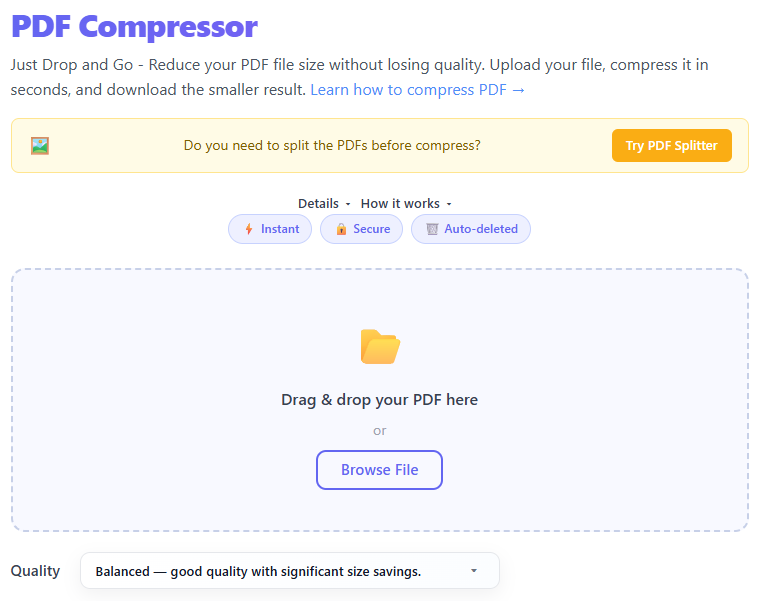
PDF Compressor
Reduce PDF file size while maintaining quality. Great for emailing documents or saving storage space.
Use Tool →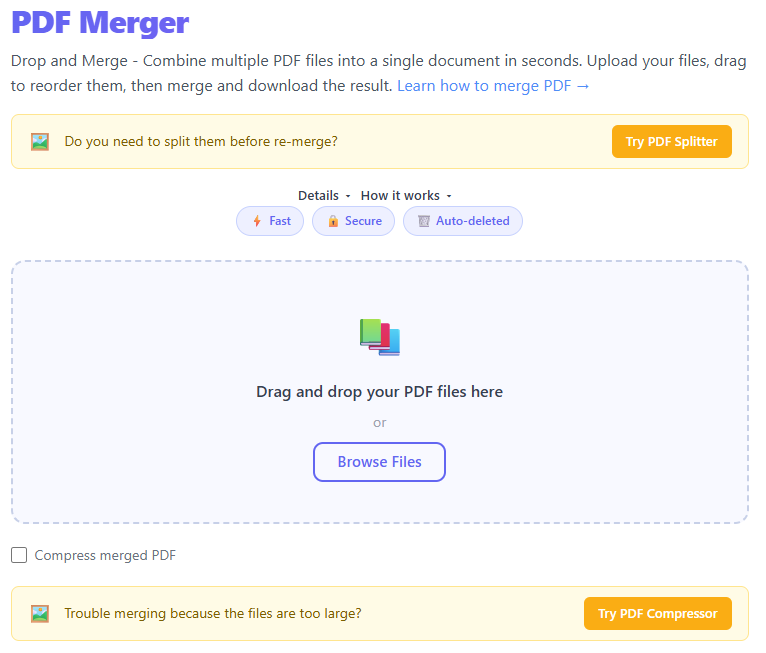
PDF Merger
Combine multiple PDF files into a single document in seconds. Simply drag, drop, and merge.
Use Tool →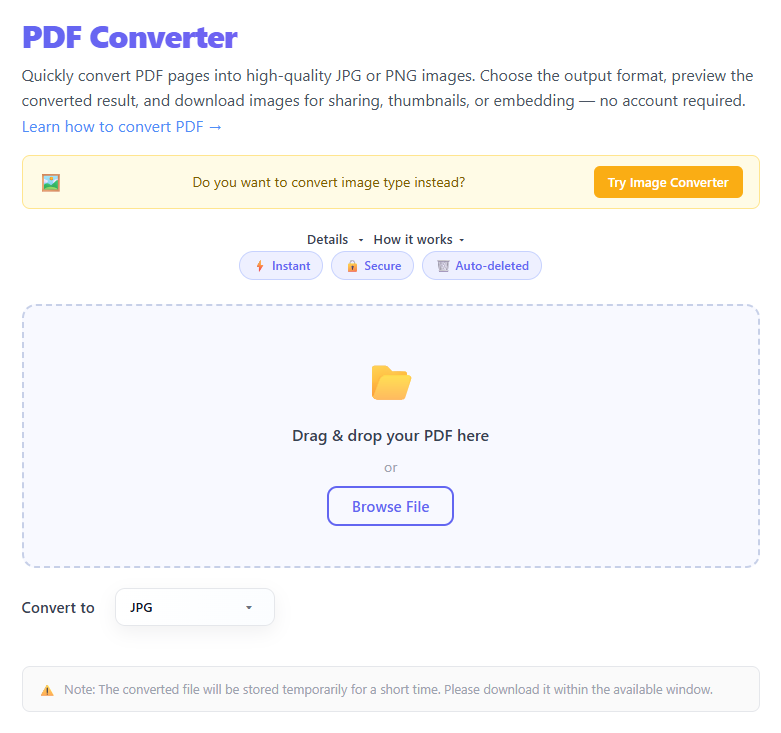
PDF Converter
Convert PDF pages into high-quality images such as PNG or JPEG quickly and privately.
Use Tool →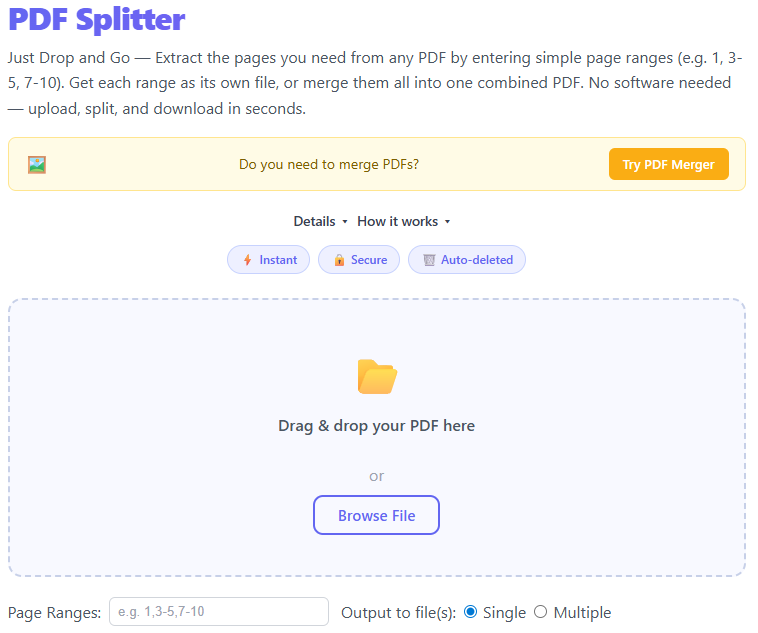
PDF Splitter
Split a PDF into individual pages or extract a custom range of pages with ease.
Use Tool →What Are PDF Tools?
PDF files are portable document files designed to look the same across devices, operating systems, and apps. They are widely used for resumes, contracts, invoices, reports, and document sharing because formatting stays consistent. Common PDF problems include large file sizes, combining separate files, extracting only specific pages, and pulling images from pages.
Examples
- File too large for email
- Need to combine documents
- Need to extract specific pages
- Need images from PDF pages
Tool Comparison Table
| Tool | Best For |
|---|---|
| PDF Compressor | Reduce file size |
| PDF Merger | Combine multiple PDFs |
| PDF Splitter | Extract pages |
| PDF Converter | Convert pages to images |
Common PDF Workflows
Sending Documents by Email
Use PDF Compressor.
Combining Reports
Use PDF Merger.
Extracting a Contract Page
Use PDF Splitter.
Related Guides
Your Files Never Leave Your Device
Privacy is built into every tool on this site. Unlike cloud-based PDF services that upload your documents to external servers, all processing happens locally in your browser using JavaScript and WebAssembly. Here is what that means in practice:
- No file is ever sent to a server — everything runs on your CPU and memory.
- Closing the tab immediately discards all data with no trace left behind.
- No account, login, or email is required for any tool.
- Confidential documents — contracts, financial reports, medical records — can be processed safely without exposing them to third-party infrastructure.
Tips for Best Results
A few simple habits can significantly improve your output quality and reduce the chance of having to reprocess a file:
- Always keep your original. Before compressing, merging, or splitting, save a backup copy. Operations cannot be undone once the browser session closes.
- Check page orientation before merging. Mixing portrait and landscape pages in a single PDF creates an inconsistent reading experience. Rotate pages first if needed.
- Use meaningful file names. Names like report_2026-06_final.pdf are far easier to manage than document(3).pdf, especially when handling multiple versions.
- Preview before downloading. Most tools display a preview of the result. Scroll through it to confirm page count, order, and readability before saving.
- Match format to destination. PNG exports from PDF Converter are ideal for presentations and documentation; JPEG is better when file size matters more than pixel-perfect sharpness.
Frequently Asked Questions
Is there a file size limit?
There is no hard server-side limit because your file never leaves your device. The practical limit depends on your browser and available RAM. Most modern browsers handle PDFs up to several hundred megabytes without issues.
Will compression affect text readability?
Text in PDFs is stored as vector data and is not affected by image compression settings. Only embedded images inside the document are compressed. A text-heavy contract or report will remain perfectly sharp regardless of the compression level chosen.
Can I merge PDFs with different page sizes?
Yes. The merger accepts PDFs regardless of their page dimensions. If visual consistency matters, consider standardizing page sizes beforehand — most word processors and print dialogs can export to a fixed paper size.
What is the difference between splitting and extracting?
Splitting divides one PDF into multiple separate files, typically one per page or by a defined range. Extraction pulls a specific set of pages into a new single file while leaving the original unchanged. Both outcomes are achievable with the PDF Splitter tool.
Which image format should I choose when converting PDF pages?
PNG is recommended for documents with text, diagrams, charts, and interface screenshots because it uses lossless compression and preserves sharp edges. JPEG is a better choice for pages dominated by photographs where a smaller output file size is more important than pixel-perfect rendering.
Who Uses These PDF Tools?
PDF tools are needed across a wide range of professions and daily situations. Here are some of the most common real-world scenarios:
- Freelancers and contractors. Compress invoices before emailing them to clients, split a master service agreement to share only relevant clauses, and convert signed pages to images for portfolio use.
- Students and educators. Merge lecture notes, assignment sheets, and reference pages into a single study document. Split long reading packs into per-session modules. Extract specific pages from textbooks or research papers.
- Office workers and administrators. Reduce report file sizes before uploading to intranets or shared drives. Combine weekly updates from multiple contributors. Extract the signature page from a contract for quick filing.
- Designers and content creators. Convert PDF presentation pages into high-resolution images for use in blog posts, social media, or client decks. Merge mood boards and reference sheets into a shareable PDF brief.
Why Use THRJ Tech PDF Tools?
THRJ Tech provides free PDF utilities that help you compress large files, merge multiple documents, split pages, and convert PDFs into images. The tools are designed to be simple, fast, and accessible from any modern browser without installing desktop software.