PDF Converter — Convert files to and from PDF
I built the PDF Converter on THRJ to make it simple to turn documents and images into PDFs — and to pull content back out of PDFs when you need it. Try it now: Open the PDF Converter.
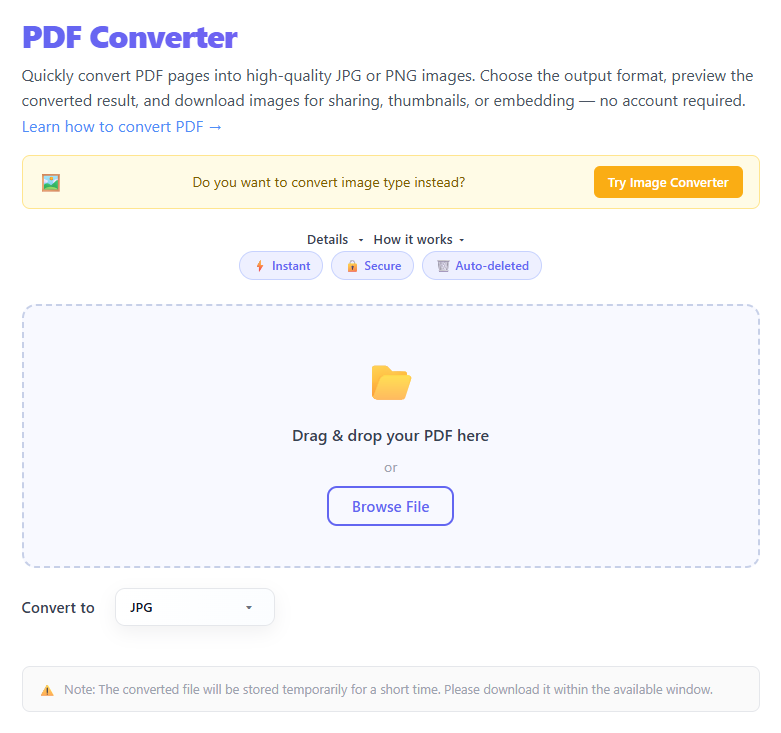
Overview
PDF Converter helps you move files between PDFs and common formats like Word, PowerPoint, images, and plain text. It works both ways: export source files to PDF, or extract pages, images, or text from PDFs.
What you can do:
- Convert Word, PowerPoint, and image files into PDFs
- Extract images or text from PDFs (when supported)
- Batch-convert multiple files at once
- Use simple presets for print-ready or web-optimized output
Quick steps
- Go to the PDF Converter.
- Drag & drop or click to select one or more files (DOCX, PPTX, JPG, PNG, PDF, etc.).
- Pick the conversion direction and any preset (for example
Print Quality,Web Optimized, orExtract Images). - Click Convert and wait for the progress to finish.
- Download your converted file(s).
Step-by-step with screenshots
1. Upload files
Drag & drop files onto the converter or use the file selector. Supported types are shown in the upload area.
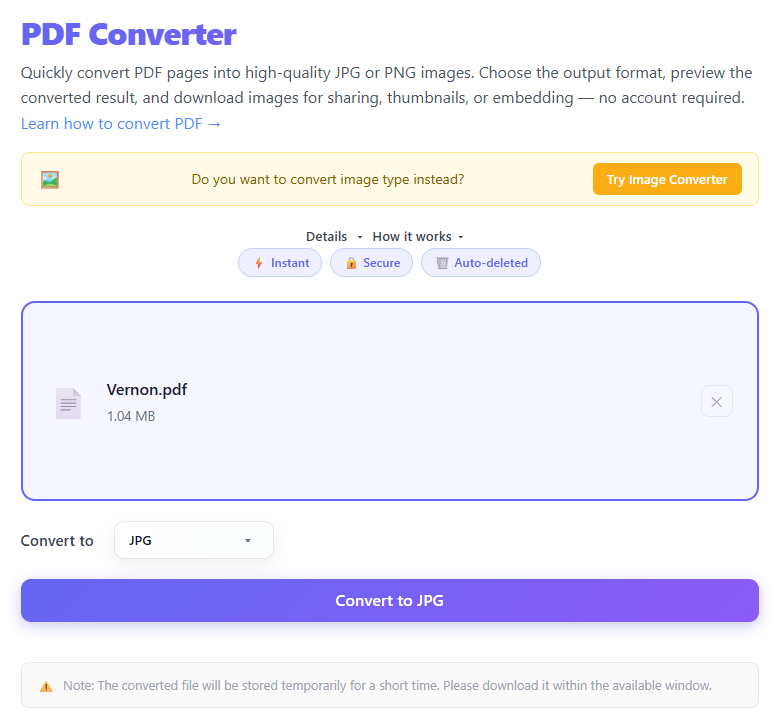
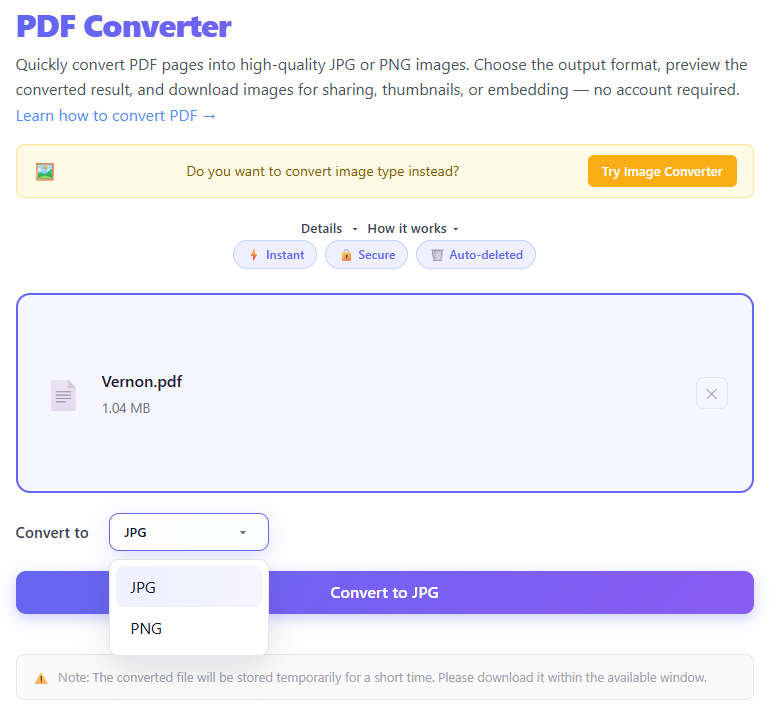
2. Select conversion options
Pick the output format and any presets. For example, convert a DOCX to PDF with Print Quality, or choose Extract Images to pull images out of a PDF.
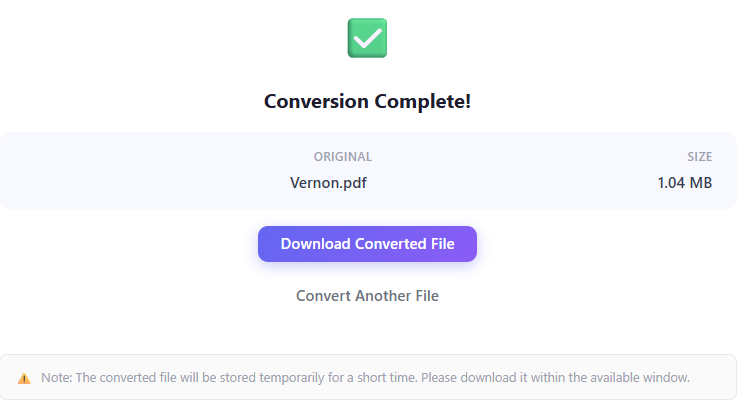
3. Convert and download
Click Convert. The UI shows progress for each file. After conversion, each file has a download link or a combined ZIP for batch results.
Making the most of conversions
Here are a few practical tips we recommend from day-to-day use:
- Choose Print Quality when you need accurate colors and detail for printing. It keeps images and layouts closer to the original.
- Pick Web Optimized for documents you plan to share online — it reduces file size without a noticeable drop in readability.
- If you need text from a scanned document, try the Extract Text (OCR) option. OCR accuracy depends on scan clarity and language.
- For presentations, double-check embedded fonts and large images after conversion; some fonts may be substituted if they aren't embedded.
Privacy and retention
Files uploaded for conversion are held only briefly to allow download and then removed. If your document is sensitive and you prefer not to upload it, use the browser-based conversion option where available.
Supported formats
- Inputs: PDF (support varies in future by conversion direction)
- Outputs: JPG/PNG (extracted pages/images) in Zip format
When to Convert to PDF vs. From PDF
Converting TO PDF makes sense when:
- You need a document to look exactly the same on any device or printer
- You're submitting a form, contract, or report to a third party who should not edit it
- You're archiving a document and want guaranteed layout preservation
- You're combining images into a single printable document
Converting FROM PDF (extracting content) makes sense when:
- You need to edit the content of a PDF but don't have the original source file
- You want to extract all the images from a scanned PDF album or report
- You need the text content to paste into another system (CRM, spreadsheet, etc.)
- You're converting a PDF presentation into individual slide images for use on a website
Format-Specific Conversion Notes
DOCX / Word documents: Word documents often contain complex formatting like tables, headers, and embedded charts. The PDF output faithfully preserves these elements, but if the source uses fonts not installed on the converting system, fallback fonts may be substituted — embed your fonts when possible.
PPTX / PowerPoint presentations: Each slide becomes a page in the PDF. Animations and transitions are flattened (only the final state is rendered per slide). Speaker notes can optionally be included.
JPG / PNG images: Images convert cleanly to single-page or multi-page PDFs. For a batch of photos, each image becomes one page in the resulting PDF. Use Print Quality to preserve image sharpness.
Extracting images from PDF: When a PDF contains embedded photos, the image extractor pulls each embedded image out as a separate JPG or PNG file — at its original embedded resolution.
What OCR Does and When to Use It
OCR (Optical Character Recognition) converts scanned images of text into actual machine-readable text. Running OCR on a scanned PDF adds a hidden text layer, enabling copy-and-paste, in-document search, accessibility for screen readers, and text extraction to other applications. OCR accuracy depends on scan quality; use 300 DPI or higher for best results.
Print Quality vs. Web Optimized
| Setting | Best For | File Size | Image Quality |
|---|---|---|---|
| Print Quality | Physical printing, archival | Larger (~original) | Highest |
| Web Optimized | Email, web sharing, portals | Smaller (40–60% less) | Good for screens |
| Extract Images | Getting individual images out | Varies | Original embedded quality |
| Extract Text (OCR) | Getting text from scanned PDFs | Small text file | N/A |
Frequently Asked Questions
Can I convert a PDF back to an editable Word document?
PDF-to-DOCX conversion attempts to reconstruct the Word document structure. Text, tables, and basic formatting convert well. Complex multi-column layouts, charts, and graphics may need manual cleanup after conversion.
Will my PDF's passwords or restrictions be preserved after conversion?
Passwords and security restrictions are handled at the document level. If you need to convert a restricted PDF, you will need the password to permit editing.
What's the maximum file size I can convert?
Files up to 100 MB are accepted. For very large PDFs, consider splitting the document first.
Do images in my PDF lose quality when extracting?
No — image extraction pulls the embedded original images at their original embedded resolution.
Can I batch-convert many files at once?
Yes. Select multiple files in the upload dialog and all will be queued and processed together. Completed files each get their own download link.
Published by THRJ Tech