Image Watermarker
Protect your images by adding a custom text or logo watermark. Adjust the position and style to fit your needs, then download the watermarked result instantly. Learn how to put a watermark on your image →
What is Image watermarker
An Image Watermarker applies a visible overlay—either text or a logo—onto an image to indicate ownership, branding, or provenance. The tool supports placement, scaling, opacity adjustments, and simple styling so you can make the watermark subtle or clearly visible depending on your goals.
How watermarking works
After selecting a source image you can choose a text watermark or upload a logo. The editor renders the watermark on an offscreen canvas at the chosen position and opacity, and then exports the composite as a new image file for download. Processing is performed locally in the browser.
Choosing the right watermark
- Semi-transparent text is a good balance for branding without overwhelming the image.
- Logos (PNG/SVG) keep transparency and provide a cleaner brand mark—use vector or high-resolution PNG logos where possible.
- Consider placement: corners are less likely to be cropped, while tiled or full-frame watermarks offer stronger protection but impact aesthetics.
Practical tips
- Use lower opacity and smaller scale for a subtle brand mark; increase opacity and size for stronger visible protection.
- For batch use, standardize watermark position and size to ensure consistent branding across images.
- Preview at actual export size to confirm legibility and visual balance before downloading.
Useful when
- need to protect your images with a visible watermark.
- want to maintain control over watermark placement, size, and opacity.
- preparing images for sharing online or for branding purposes.
Privacy, retention and limitations
Because watermarking runs in your browser, your images remain on your device unless you explicitly upload them. Note that visible watermarks deter casual reuse but are not a foolproof copyright protection; determined actors can remove or crop them.
FAQs
- Q: Can I use a logo? A: Yes — upload a PNG or SVG logo to apply as a watermark; transparent backgrounds are supported.
- Q: Will this change my original image? A: No — the tool creates a new watermarked file and does not overwrite your original file.
- Q: Does the image leave my browser? A: No — watermarking runs in your browser and does not upload the original image by default.
- Q: Can I control opacity, size, and position? A: Yes — use the controls to adjust the watermark's opacity, scale, and placement.
- Q: Does watermarking work with all image formats? A: Common web formats (JPEG, PNG, WebP) are supported.
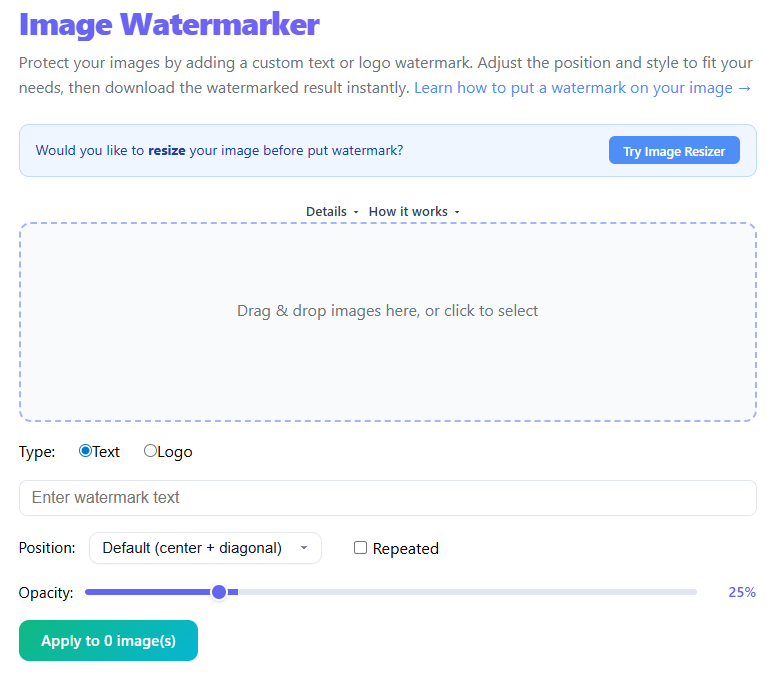
Import an image to watermark via drag & drop or file select.
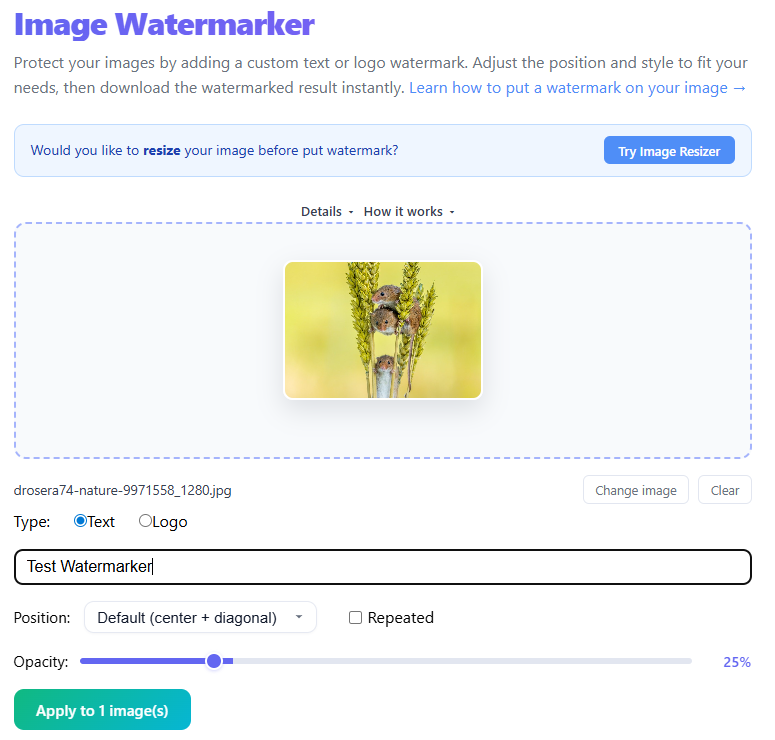
Choose text or logo watermark and adjust position, size, and opacity.

Apply the watermark preview and fine-tune placement.
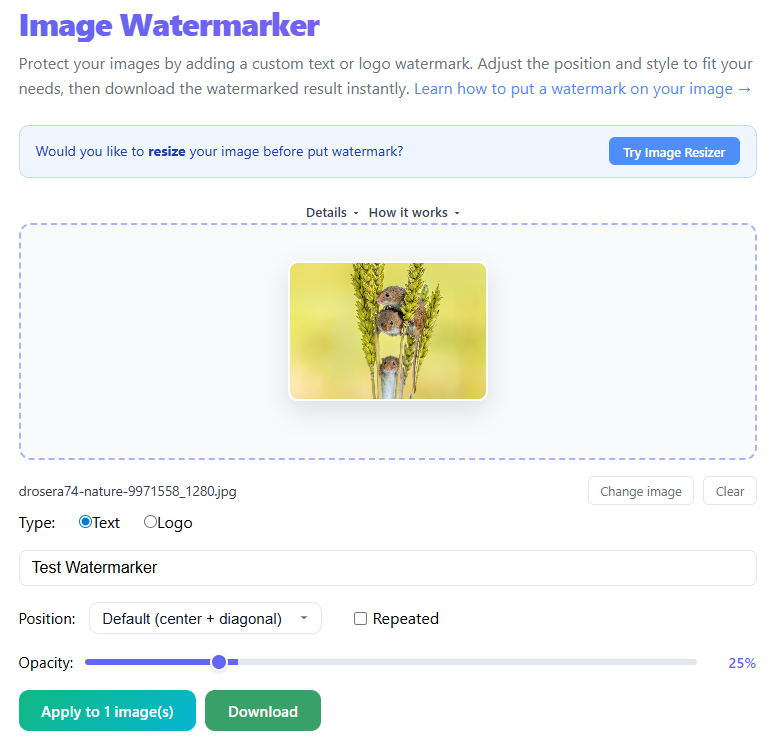
Export and download the watermarked image.
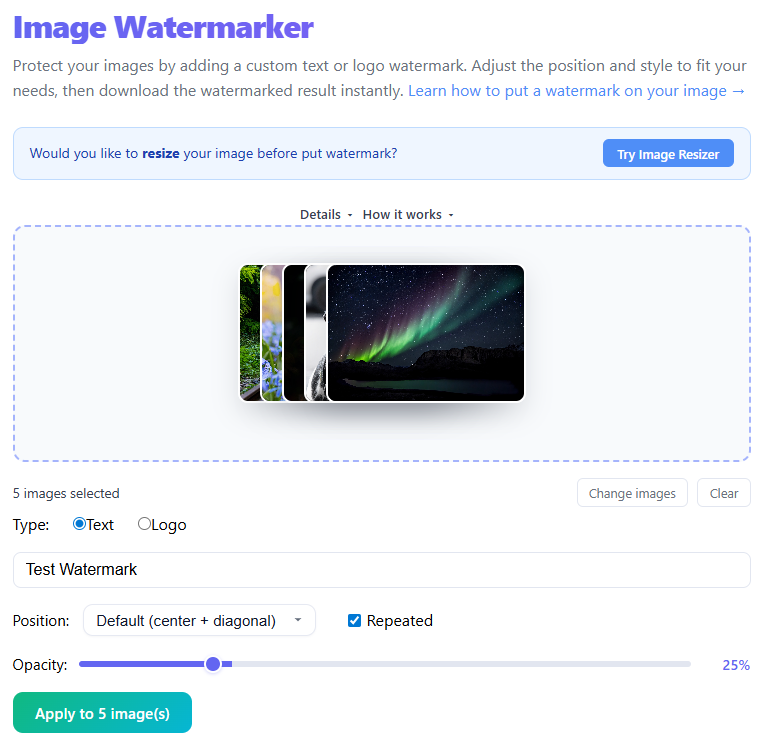
Optional - You can apply watermark on multiple files at once.
How to Add Watermarks to Image(s) (Protect Your Work and Build Your Brand)
If you share images online — whether photos, designs, or screenshots — you've probably worried about others using them without permission. That's where watermarking comes in.
What Is a Watermark?
A watermark is a visible overlay (text or logo) placed on an image to indicate ownership or origin. Common types include text watermarks (name, website), logo watermarks (brand identity), and pattern watermarks (repeated across image).
Why You Should Use Watermarks
- Protect Your Content: Watermarks discourage casual reuse by clearly showing ownership.
- Build Brand Recognition: Every shared image carries your name or logo with it.
- Prevent Content Theft: Makes removal harder and reduces casual copying.
- Add Professional Identity: Watermarked images look intentional and authoritative.
Types of Watermarks
Text Watermark — Simple and fast — good for blogs and tools (e.g., "thrjtech.com").
Logo Watermark — Strong branding — ideal for businesses; use PNG/SVG for transparency.
Repeated Watermark — Tiled across the image — best for high-value content, but less clean visually.
🔒 Technical Deep-Dive: Local Client-Side Processing
This Image Watermarker application is built entirely on modern web features to process and protect your content directly inside your web browser. Rather than uploading high-resolution media to a remote server—which consumes significant bandwidth, risks privacy exposure, and introduces latency—the image manipulation runs entirely locally. We utilize the HTML5 Canvas API and direct browser memory arrays. When you import your images, our JavaScript code loads them into an offscreen canvas object. The text layout, scaling, font alignment, and logo composition calculations are rendered pixel-by-pixel locally.
This decentralized design ensures absolute security and high performance. Your source images and custom logos never cross the network. Once the composite drawing is ready, the canvas exports the local buffer as an optimized JPEG, PNG, or WebP blob. This client-side canvas render workflow avoids server-side storage queues and completely guarantees that your data stays strictly on your device. It is a 100% secure, zero-server footprint setup built to respect your creative ownership and personal data privacy.
Additionally, by utilizing browser WebAssembly arrays and local CPU scheduling, we can handle multiple high-density images concurrently without server bottleneck limits.
📊 Comparison: Watermark Style Trade-Offs
Choosing between text elements, raster image logos, and vector assets holds different design and performance trade-offs:
| Watermark Type | Key Advantages | Best Use Cases |
|---|---|---|
| Text Element | Zero load setup; instant customization; dynamic scaling; zero bytes package overhead. | Fast proofing; dynamic text (e.g., date-time, username stamps); blog article protection. |
| PNG Logo (Raster) | Supports rich pixel layouts; alpha-transparency; custom brand textures. | E-commerce product showcases; official visual assets; photography portfolios. |
| SVG Logo (Vector) | Infinite resolution scale without pixelation; crisp outlines; ultra-low file size. | Consistent company branding across highly varied canvas dimensions (e.g., icons to billboards). |
🎯 Recommended Opacity & Placement Guidelines
Achieving the perfect balance between content readability and robust watermark protection is key:
| Image Category | Advised Opacity | Strategic Locations | Security Rationale |
|---|---|---|---|
| Professional Photography | 15% – 30% | Lower right corner or center-diagonal | Keeps the visual art composition clean and distraction-free while marking official origin. |
| Software Screenshots / Guides | 30% – 50% | Lower-left corner or corner near main text | Deters fast competitive scraping of tutorial assets without rendering technical content illegible. |
| E-commerce Product Pages | 25% – 45% | Center-diagonal or repeated tile pattern | Prevents unauthorized digital storefronts from directly copying your customized inventory listings. |
Best Practices
- Keep it visible but not distracting (opacity ~20–60%).
- Choose the right position: corner for subtle, center for strong protection.
- Use consistent branding (font, logo, placement).
- Avoid overpowering the image — balance is key.
- Match watermark color to image brightness for legibility.
Step-by-Step
- Upload your image(s)
- Enter text or upload a logo
- Adjust size, position, and opacity
- Preview the watermark
- Download the final image
FAQ
Can you put watermarks on multiple images at once?
Yes — you can select multiple images and apply the same watermark to all of them simultaneously in a batch process.
Can watermarks be removed?
Yes — advanced AI-based tools can remove visible watermarks, but choosing a tiled pattern or a center-diagonal placement overlapping rich textures makes automated removal much harder.
What opacity should I use?
A range of 30% to 50% opacity is typical. Highly competitive documentation assets work best with 40% opacity, while professional portfolios look best with subtle 15% opacity overlay marks.
Should I place watermark in the center?
Center-diagonal placement offers the most robust security. Corners are cleaner and less distracting but are much easier for malicious actors to crop out.
How does batch watermarking affect browser memory?
Since all processing works strictly inside local client memory via the HTML5 canvas, batch watermarking fits within normal memory pools. Still, processing dozens of massive 4K files at once might briefly slow older browsers as JS clears garbage arrays.
Are my original image EXIF metadata fields retained?
Traditional canvas renders discard EXIF metadata like GPS coordinates, camera models, and dates. This clean slate works as an added privacy advantage, though users wanting metadata preserved should use specialised software.
What is the difference between visible and invisible watermarks?
Visible watermarks are overt text/logo overlays designed to deter unauthorized copying. Invisible watermarks embed cryptographic signatures within the pixel brightness arrays (steganography) which survive cropping but require special key decoders to detect.
Which image file formats are supported?
This tool seamlessly supports common image formats including JPEG, PNG, and WebP. HEIC/HEIF files are also supported via on-the-fly local browser compatibility conversion layers.
Is of-the-shelf PNG transparency supported for logo watermarks?
Yes. Built-in opacity layers inside PNG logos are fully preserved. Our browser canvas respects alpha channels, letting transparent background logos blend perfectly.
Can I watermark images on a mobile device?
Yes, this is fully compatible with iOS and Android. Mobile browsers load the local layout tools perfectly, rendering watermark canvas composites locally on smartphones.
Conclusion
Watermarking is a simple way to protect images, promote your brand, and maintain ownership visibility. When done right it enhances your content without distracting from it.
Try the Image Watermarker →