PDF Splitter
Just Drop and Go — Extract the pages you need from any PDF by entering simple page ranges (e.g. 1, 3-5, 7-10). Get each range as its own file, or merge them all into one combined PDF. No software needed — upload, split, and download in seconds. Learn how to split PDF →
What is PDF splitting
PDF splitting is the operation of extracting a subset of pages from a source PDF and writing them into one or more output documents. The operation is non-destructive — the source file is not modified — and produces output PDFs that share the same media boxes, fonts, and embedded resources as the original pages.
Output options
Two output modes are supported, letting you choose the right result for your workflow:
- Multiple files: each page range produces an independent PDF.
- Single combined file: all selected ranges are assembled into one PDF in the order they appear.
Page range format
Ranges are entered as a comma-separated list. The supported syntax is:
- Single page: 3
- Contiguous range: 3-7
- Mixed list: 1,3-5,8,10-12
Ranges are inclusive and 1-indexed. The tool validates input and reports errors for out-of-range or malformed values.
Design tradeoffs
- Fidelity: Page content is reproduced exactly; no recompression or re-encoding of resources.
- Performance: Processing time scales with file size and number of selected pages.
- Order: Pages appear in the output in the order defined by the range expression.
Practical recommendations
- For recurring extractions from a standard document, note the page numbers in advance.
- If you only need a few pages from a large file, splitting first reduces downstream processing time.
- Combine splitting and merging when you need to reorder or selectively combine pages from multiple documents.
What it does
- Extracts one or more page ranges from a PDF.
- Produces one output file per range, or a single combined file.
- Preserves original page content and embedded resources.
- Runs server-side for reliable handling of large files.
Useful when
- You need to share only specific chapters or sections of a document.
- You want to split a scanned multi-page document into individual files.
- You need to extract appendices or exhibits from a report.
- You need to reduce file size by removing unneeded pages before sharing or archiving.
Comparison with alternatives
- Browser-based: convenient, no installation; suitable for occasional use.
- Desktop tools: better suited for batch workflows or documents requiring special handling.
- Command-line tools: fastest for automation and scripted workflows.
Privacy & retention
Uploaded files are processed on short-lived infrastructure and removed according to the app's retention policy. If you are handling highly sensitive documents, prefer local desktop tools or an on-prem solution that matches your compliance requirements.
FAQs
- Q: Is my file private? A: Files are processed temporarily and auto-deleted according to the app's policy.
- Q: Can I extract non-contiguous pages? A: Yes — use a comma-separated list such as 1,3,7.
- Q: What happens to the original PDF? A: The original is not modified; only the selected pages are written to new output files.
- Q: Can I combine the split ranges into one file? A: Yes — select the 'Single' output option to receive all ranges merged into one file.
- Q: What if my range is out of bounds? A: The tool validates your input and shows an error before attempting to process.
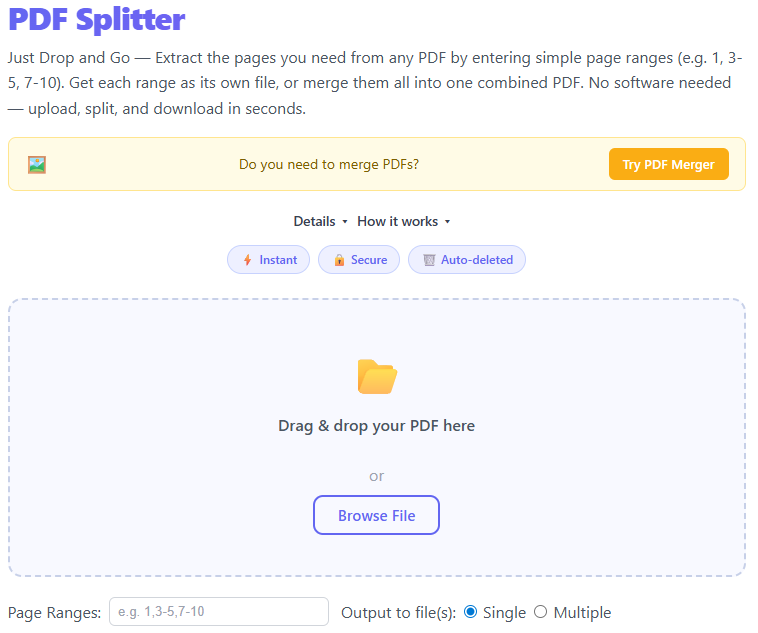
Upload a PDF using drag & drop or the browse button.
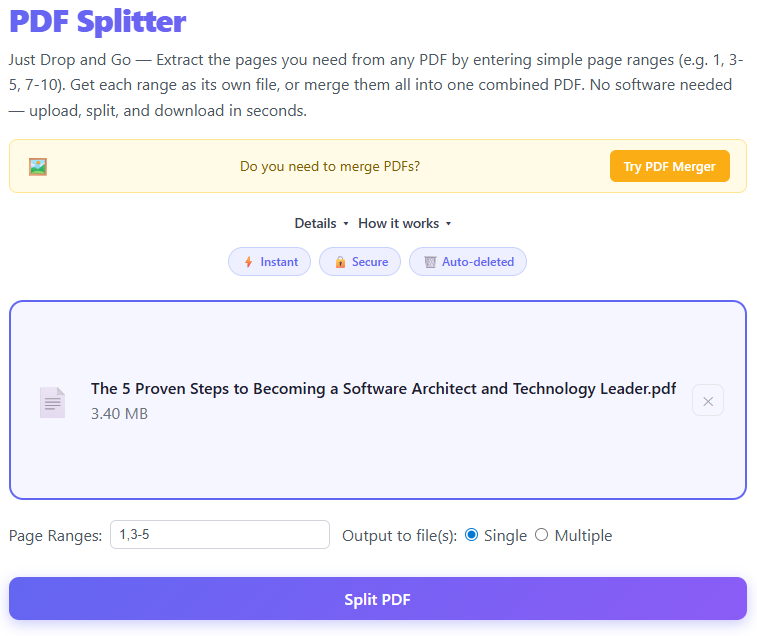
Enter the page ranges you want (e.g. 1,3-5,7-10) and choose Single or Multiple output.
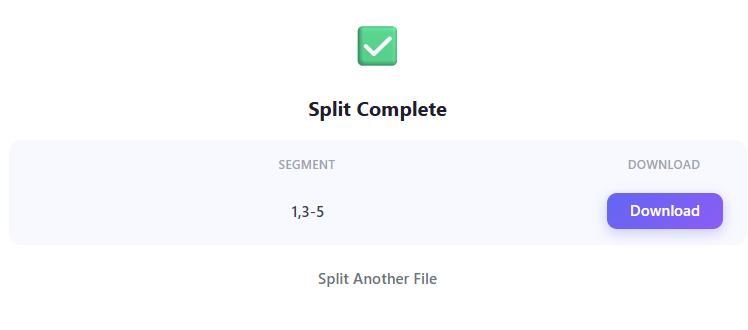
Click Split PDF — the file is uploaded to R2 storage and the splitter processes your ranges.
Download each segment (or the combined file) before it expires from temporary storage.
Comprehensive Guide to PDF Splitting & Structural Page Extraction
Large, monolithic PDF documents frequently contain extraneous sections, unneeded appendices, or distinct chapters that require separation. Rather than transmitting or storing an entire multi-megabyte container, precise page extraction isolates target content into streamlined, standalone PDF documents while preserving vector sharpness and typographical integrity.
👉 Explore the technical architecture below to understand how client-side PDF DOM manipulation and object tree extraction deliver fast, zero-loss document splitting.
📄 What Is PDF Splitting?
PDF splitting is the algorithmic extraction of selected page dictionaries and their associated indirect object subgraphs from a source PDF document. The process enables you to:
- ✂️ Extract precise page ranges or non-contiguous page collections (e.g., 1, 4–7, 12)
- 📑 Partition expansive multi-page files into independent single-page or section-based PDFs
- 🎯 Isolate critical chapters, invoices, or legal exhibits with 100% vector and font fidelity
- 📦 Reduce document transmission overhead by purging unneeded content streams and raster assets
🧠 Why Splitting PDFs Is Critical for Document Pipelines
- 🎯 Focus on High-Priority Data — isolate and review only the relevant sections without navigating through hundreds of unrelated pages.
- 📤 Granular Document Distribution — transmit only the specific exhibits or contractual addenda required by external recipients.
- ⚡ Enhanced Processing Performance — smaller, extracted files load instantaneously in web viewers, mobile readers, and downstream OCR tools.
- 📂 Structured Information Management — decompose batch-scanned documents into organized, categorical records with distinct metadata.
🛠 Enterprise & Professional Use Cases
- 💼 Corporate & Commercial Law — extract signature pages, schedules, and confidential annexes from master service agreements.
- 🎓 Academic & Scientific Research — segment voluminous reference journals into discrete chapters or isolate bibliography sections.
- 📑 Financial & Tax Reporting — separate consolidated annual financial binders into individual quarterly statements and audit exhibits.
- 🧾 High-Volume Batch Scanning — partition multi-page feeder scan batches into separate invoice and receipt records.
🧠 How PDF Splitting Works (Overview)
The splitting engine parses the binary PDF stream into an in-memory Document Object Model (DOM), traverses the hierarchical page tree, extracts the targeted /Page dictionaries along with their content streams and resource dependencies, recalculates object byte offsets, and serializes a fully compliant ISO 32000 PDF file.
⚙️ Technical Architecture & PDF Object Mechanics
Understanding low-level PDF document internals is essential for robust, developer-grade document manipulation. Below is an architectural breakdown of how our engine performs page extraction without rasterization or structural corruption:
Object Catalog & Page Tree Dissection (/Catalog & /Pages)
Every valid PDF file contains a root /Catalog dictionary pointing to a balanced B-Tree /Pages hierarchy. During extraction, the engine parses the root catalog, traverses intermediate /Pages branch nodes, and isolates target /Page dictionaries. The engine flattens inherited attributes (such as /MediaBox, /CropBox, and /Rotate) directly into the target page objects, assigns a newly synthesized root /Pages tree with a recalculated /Count integer, and establishes fresh /Parent pointer references.
Cross-Reference Table (XRef) & Byte Offset Recalculation
PDF documents rely on a Cross-Reference Table (or compressed /XRef stream) that indexes the precise byte offset of every indirect object (e.g., '14 0 obj'). Extracting a subset of pages invalidates all original byte locations. The splitting engine re-indexes all referenced indirect objects into a compact sequential range (1 to N), rewrites indirect object identifiers ('N 0 R') across content streams and dictionaries, and builds a new binary XRef table and /Trailer dictionary from byte offset zero, guaranteeing zero corruption.
Font Subset Extraction & Stream Isolation
Pages reference typography through shared /Resources /Font dictionaries, including custom OpenType/TrueType subsets identified by randomized 6-character tags (e.g., ABCDEF+Roboto). The extraction pipeline isolates only the font programs, /FontDescriptor structures, and /ToUnicode Character Maps (CMaps) specifically invoked by the extracted /Contents streams. Unreferenced font resources and orphaned assets from omitted pages are pruned, maintaining rendering fidelity while minimizing output overhead.
Client-Side Memory Allocations & Cryptographic Privacy
Page extraction operates directly within the browser's execution thread using JavaScript TypedArrays (Uint8Array, ArrayBuffer) and high-performance WebAssembly. Documents never leave your device or touch external servers during local operations, eliminating data leakage risks for confidential legal agreements, financial records, or medical files. Output files are synthesized as in-memory Blobs and downloaded directly via ephemeral object URLs with instant memory deallocation.
🪜 Step-by-Step: How to Split a PDF
- 📤 Upload your source PDF document via the intuitive drag-and-drop zone or file browser
- 👀 Specify target page ranges using standard notation (e.g., '1-3, 5, 8-10')
- ⚙️ Select output mode: discrete standalone files for each range or a single merged output
- 🚀 Click 'Split PDF' to execute in-memory object tree extraction and byte serialization
- 📥 Download individual segment PDFs or your consolidated document package instantly
🎯 Best Practices for Precision PDF Splitting
- ✅ Pre-Verify Page Indices — check the internal physical page numbers rather than document-printed folio numbers prior to range specification.
- ✅ Maintain Logical Naming Conventions — adopt structured file prefixes (e.g., 'Contract_Exhibit_A.pdf') for extracted segments.
- ✅ Avoid Over-Fragmentation — consolidate closely related pages into coherent multi-page ranges to prevent cluttering document repositories.
- ✅ Validate Interactive Elements — confirm that form fields, hyperlinks, and bookmarks retain appropriate destination targets in output files.
- ✅ Retain Golden Master Copies — preserve uncompressed master PDF files in immutable storage prior to destructive workflow partitions.
⚠️ Common Extraction Pitfalls & How to Avoid Them
- ❌ Range Index Offset Errors — confusing 1-indexed PDF physical page positions with Roman-numeral preface folios.
- ❌ Inadvertent Signature Invalidation — splitting cryptographically signed PDFs without recognizing that hash digests are broken upon structural change.
- ❌ Orphaned Form Field Widgets — extracting fillable form pages without updating the root /AcroForm dictionary container.
- ❌ Unchecked Bookmark References — retaining outline trees with dead pointers directed at purged document sections.
- ❌ Desktop Rasterization Workarounds — converting pages to bitmap images instead of performing native vector DOM page extraction.
⚖️ PDF Splitter vs PDF Merger
| Feature | PDF Splitter | PDF Merger |
|---|---|---|
| Core Objective | Decompose document into discrete page ranges | Unify multiple disparate PDFs into a single container |
| Output Structure | Multiple standalone PDFs or discrete segments | Single consolidated PDF with unified /Catalog |
| Primary Use Case | Extracting chapters, isolating invoices, forms | Dossier creation, report bundling, archiving |
📊 PDF Internal Component Handling Specification
The technical reference table below outlines how low-level PDF data structures and resource dictionaries are transformed during extraction:
| PDF Internal Component | Technical Action During Extraction | Impact on Output File |
|---|---|---|
| Outlines / Bookmarks (/Outlines) | Parent/child node pointers referencing pages outside the extracted range are pruned. | Prevents broken navigation links and dangling pointers in isolated files. |
| Annotations & Comments (/Annots) | Isolated /Annots object arrays mapped to extracted page indices are retained. | Sticky notes, text highlights, stamps, and vector drawings remain intact and positioned. |
| Embedded Font Subsets (/Font) | Relevant font dictionaries and /ToUnicode CMaps are embedded into the new file header. | Ensures identical visual text rendering; slightly increases isolated file byte size. |
| AcroForms & Fields (/AcroForm) | Form field dictionaries mapped to target pages are linked under a new root /AcroForm. | Interactive form inputs, text boxes, and checkboxes remain editable in the extracted file. |
| Digital Signatures (/Sig) | Cryptographic hash digests (/ByteRange) are invalidated upon stream modification. | Signatures are stripped or marked invalid to preserve cryptographic security integrity. |
| Color Spaces & ICC Profiles (/ColorSpace) | ICC profile streams and device color dictionaries are mapped into local page /Resources. | Guarantees accurate CMYK and sRGB color calibration for high-fidelity printing. |
❓ Frequently Asked Technical Questions (FAQ)
Why does extracting a single page from a PDF sometimes result in a file size larger than expected?
Standalone PDF pages must be self-contained documents. When extracting a single page from a multi-page document, the newly created PDF must embed the full typography subset dictionaries (/Font), color profiles (/ICCBased), shared resource dictionaries, and document header metadata required to render that page accurately. While subsequent pages share these embedded resources in the original multi-page file, the isolated single-page file must carry these foundational structures independently, leading to a higher baseline byte overhead.
What happens to digital signatures and cryptographic certificates when a signed PDF is split?
Digital signatures in PDFs compute a cryptographic SHA-256 or RSA digest over an exact document byte range (/ByteRange). Because extracting or deleting pages fundamentally alters the file's byte sequence, any pre-existing digital signature is mathematically invalidated. To maintain cryptographic integrity and adhere to ISO 32000 specifications, the split engine strips broken signature dictionaries or flags them as invalidated, preventing false assertions of authenticity.
How does the client-side parser rebuild internal bookmark hierarchies when extracting non-sequential page ranges (e.g., 1, 4-7, 12)?
The parser inspects the hierarchical /Outlines tree in the document's /Catalog. It evaluates each outline item's destination dictionary (/Dest) to identify its target page object. Nodes pointing to excluded pages are pruned, while valid entries pointing to retained pages are re-linked under synthesized parent-child pointers (/First, /Last, /Next, /Prev) with updated page indices, ensuring interactive document navigation without dead links.
Can a password-protected or encrypted PDF (AES-128 / AES-256) be split without decrypting the master key?
No. Standard PDF encryption secures internal object streams using AES-128, AES-256, or RC4 cipher algorithms linked to the document's encryption dictionary (/Encrypt). The engine cannot traverse the /Pages tree or read object byte streams without the document decryption key. Once the user provides the password, decryption occurs in volatile memory, allowing page extraction before generating a secure output file.
How are interactive AcroForm fields handled when splitting a multi-page fillable form into single-page documents?
The extraction processor scans the /Annots array of each extracted page to identify interactive widget annotations (/Subtype /Widget). It then generates a dedicated root /AcroForm dictionary containing only the field descriptors associated with those widgets. Field values, calculation scripts, and appearance streams (/AP) are preserved so that text fields, radio buttons, and dropdowns remain interactive in the split document.
What is the maximum browser RAM threshold when splitting high-resolution 500+ page vector PDF blueprints?
Modern 64-bit web browsers allocate between 1.5 GB and 4 GB of heap memory per tab. When splitting massive documents with hundreds of high-resolution CAD drawings or multi-megapixel vector streams, memory consumption peaks during /Contents stream decompression (FlateDecode). The parser employs memory recycling and TypedArray stream slicing to keep RAM usage well below browser crash limits.
Does splitting a scanned PDF affect embedded OCR (Optical Character Recognition) text layers?
No. In scanned documents with OCR, text layers exist as invisible vector text objects rendered with the '3 Tr' (invisible text) rendering mode positioned precisely over the background raster image (/XObject /Image). The splitting engine copies both the raster image stream and the invisible OCR text stream alongside its /ToUnicode CMap, preserving complete keyword searchability and copy-paste capabilities.
How does stream decompression (FlateDecode) work during local page extraction?
PDF content streams, vector graphics, and metadata streams are typically compressed using zlib / Deflate algorithms declared in the /Filter /FlateDecode dictionary. During extraction, the engine decodes the binary byte streams to verify structural object boundaries and can either copy compressed streams directly without re-compression (passthrough) or re-deflate them to optimize output file size and processing speed.
How does page rotation (/Rotate) and crop box (/CropBox) inheritance behave in extracted pages?
In complex PDF documents, page dimensions and rotations are often defined at parent /Pages node levels rather than on individual /Page objects. The extractor resolves all inherited geometric attributes—including /MediaBox, /CropBox, /BleedBox, /TrimBox, and /Rotate (0°, 90°, 180°, 270°)—and flattens them explicitly into the new standalone /Page dictionary to prevent layout distortion.
What is the difference between vector page extraction and rasterizing or printing to PDF?
True vector page extraction performs direct structural manipulation of the PDF DOM, preserving infinite zoom resolution, vector line paths, selectable fonts, and embedded metadata with minimal file sizes. In contrast, 'Print to PDF' or rasterization tools convert vector content into fixed-DPI pixel bitmaps, resulting in fuzzy text, huge file sizes, and total loss of searchable text layers.