Video Tools
Capture your screen or transform video clips into lightweight animated GIFs — processed entirely in your browser. No extensions to install, no accounts to create, and nothing is ever uploaded to a server.
Quick Screen Recorder
A zero-setup, browser-based recording utility designed for immediate use. Capture your choice of the entire desktop, a specialized application window, or a single browser tab with high-definition clarity. Perfect for creating tutorials, demos, and bug reports without the bloat of traditional recording software.
Use Tool →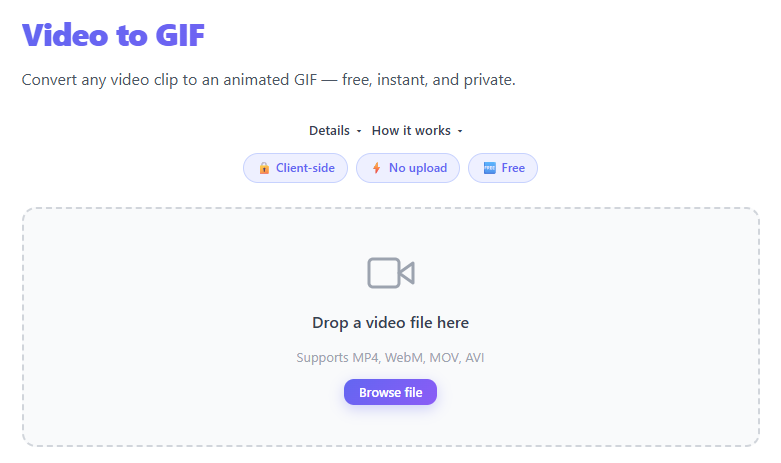
Video to GIF Converter
Transform high-resolution video clips into lightweight, shareable animated GIFs. Our converter runs entirely on your local machine, allowing you to fine-tune frame rates and quality settings to strike the perfect balance between file size and visual smoothness for web delivery.
Use Tool →The Comprehensive Guide to Browser-Based Video Utilities
1. Modern Browser Recording & Conversion
Video content is the most engaging medium on the web, but creating and sharing it can often be technically challenging. Our platform simplifies this by providing robust video tools that require no installation. By leveraging modern browser APIs such as MediaDevices and WebAssembly-powered converters, we bring high-performance video processing directly to your browser window. This eliminates the need for expensive subscriptions or privacy-invasive 'cloud' converters. Whether you are capturing a software bug, creating a product demo, or converting an MP4 into a looping GIF for a GitHub README, our tools offer a frictionless, high-speed experience. All processing happens on your local CPU and GPU, ensuring that your data never leaves your device while providing the near-instant performance modern professionals demand.
- Zero Installation: No browser extensions, desktop apps, or plugins required. Everything runs in standard modern browsers.
- Lossless Capture: Record your screen at the native resolution of your display for pixel-perfect tutorials and presentations.
- Fast Conversion: Convert portions of videos to GIFs in seconds using efficient client-side encoding algorithms.
- Universal Sharing: Generate formats that are compatible with every major social platform, email client, and documentation tool.
2. Video Tool Capabilities
Detailed breakdown of our core video processing capabilities.
Video to GIF Converter
Primary use cases for this tool:
- Creating animated feature highlights for landing pages and marketing emails.
- Adding looping demonstrations to documentation sites like GitBook or Readme.io.
- Capturing funny or informative segments from long videos for social sharing.
Quick Screen Recorder
Primary use cases for this tool:
- Recording technical bugs to share with development teams for faster debugging.
- Creating 'how-to' video guides for onboarding new employees or users.
- Capturing live presentations or webinars for later review and archiving.
3. Comparing GIF vs. MP4 Video Formats
Understanding when to choose GIF over MP4 is essential for optimizing web performance.
| Capability | Animated GIF | MP4 (H.264/H.265) |
|---|---|---|
| File Size | High (Limited compression, best for short clips) | Low (High compression, best for long videos) |
| Audio Support | No (Strictly visual) | Yes (High-fidelity stereo audio) |
| Auto-Play Support | Universal (Plays automatically in all environments) | Conditional (Often requires mute for auto-play) |
4. Common Professional Workflows
Step-by-step guides for common professional video tasks.
Documenting a Software Bug
Start the screen recorder, capture the exact steps to reproduce the issue, and save it as an MP4 to attach directly to your Jira or GitHub issue ticket.
Creating a Looping UI Animation
Record a short clip of a new UI transition, then use the Video to GIF tool to create a lightweight loop for your design portfolio or product update.
5. Why Client-Side Video Processing Matters
Video files are often large and contain sensitive personal or business information. Our client-side approach ensures maximum security:
- Local In-Memory Recording: Your screen recording is stored in your browser's temporary memory, never on our servers.
- No Tracking: We don't track what you record or convert. Your tutorials and private meetings remain 100% confidential.
- Offline Capability: Once the tool is loaded, you can record and convert even if you lose your internet connection.
- No Watermarks: We don't force watermarks on your professional content, ensuring your brand stays front and center.
6. Pro Tips for High-Quality Captures
Master browser-based video with these professional recording and conversion strategies.
- Curate Your Recording Area: Whenever possible, record a 'Window' or 'Tab' instead of the 'Entire Screen' to avoid accidental leaks of notifications or desktop icons.
- Optimize for GIF Resolution: When converting to GIF, use a smaller resolution (e.g., 640px width). This keeps file sizes low enough for email and Slack.
- Check Your System Audio: Modern browsers allow you to capture tab audio. Ensure your volume is balanced before starting a long recording session.
- Use Lower Frame Rates for Documentation: For software demos, 10-15 FPS is often enough for GIFs, dramatically reducing the file size without sacrificing clarity.
- Clean Up Your Browser UI: Before recording a web tutorial, hide your bookmarks bar and extensions to make the video look cleaner and more professional.
7. Frequently Asked Questions
How long can I record my screen for?
There is no hard limit set by the tool. However, recordings are stored in RAM, so very long sessions (over 1 hour) may depend on your device's memory.
What video formats are supported for GIF conversion?
Our tool supports most common formats that your browser can play, including MP4, WebM, and MOV (on supported platforms).
Is microphone audio supported in the recorder?
Yes! You can choose to include your microphone, system audio, or both depending on your browser's security settings.
Why is my GIF file so large?
GIFs are an uncompressed format from the 1980s. To reduce size, try lowering the duration, frame rate, or resolution during conversion.
Does this work on mobile devices?
Screen recording is best supported on Desktop browsers like Chrome, Edge, and Firefox due to OS-level security restrictions on mobile.
8. Real-World Use Cases
Our video toolkit is trusted by professionals across various industries for its speed and privacy.
- Quality Assurance Engineers: Record high-definition bug reproductions and share them instantly with developers to reduce turnaround time.
- Content Creators: Convert highlight clips into GIFs for social media engagement and 'teaser' content on platforms like Twitter and Instagram.
- Remote Educators: Quickly record short instructional 'snippets' to explain complex concepts to students without needing complex video editing suites.
- Product Designers: Capture smooth UI/UX transitions and embed them as loops in Figma or other design tools to show developers exactly how animations should feel.
Why Use THRJ Tech Video Tools?
From creating GIFs to recording your screen, THRJ Tech video tools help you produce shareable visual content quickly and without installing additional software.