Image Tools
A complete image editing toolkit that runs entirely in your browser. Resize for any platform, protect photos with watermarks, build collages, crop to exact dimensions, generate memes, convert between formats, or fix orientation — all in seconds, all private, nothing uploaded.
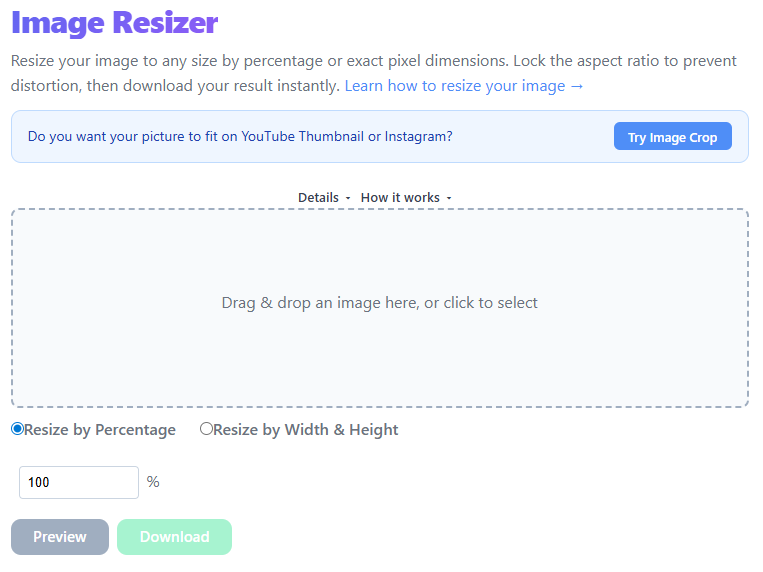
Image Resizer
Professional-grade image scaling that allows you to change pixel dimensions or percentage size. Perfect for fitting strict upload requirements for websites, emails, or social media while maintaining crisp visual fidelity.
Use Tool →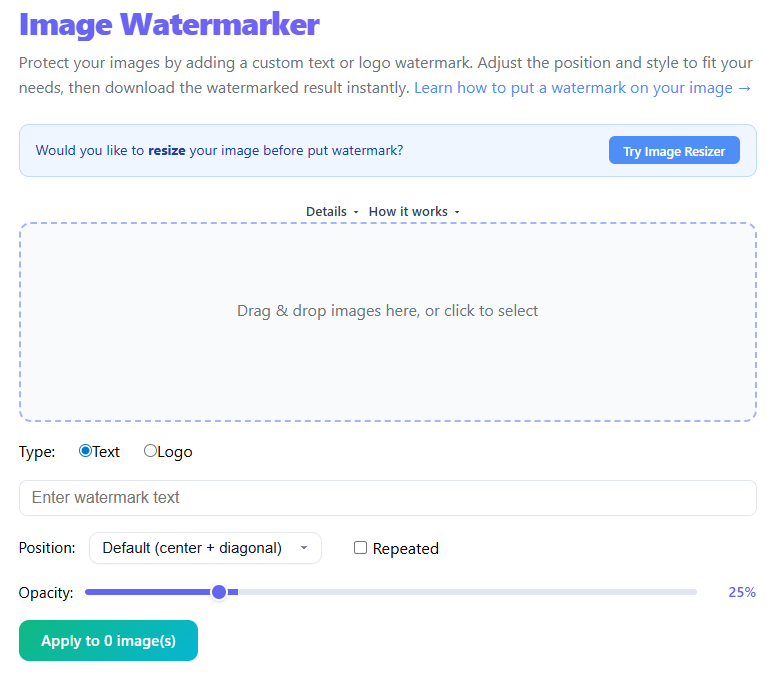
Image Watermarker
Secure your digital assets with custom watermarks. Add your brand logo or custom text with adjustable opacity, position, and scale. Essential for photographers and creators who share their work online.
Use Tool →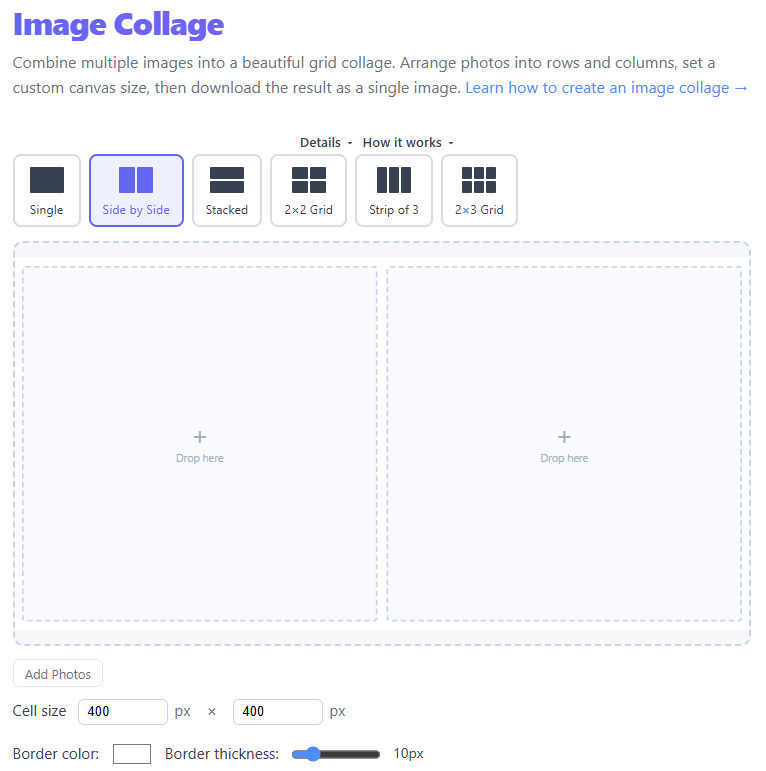
Image Collage Maker
Transform your collection of photos into a stunning visual narrative. Choose from multiple grid layouts, adjust border spacing, and customize background colors to create the perfect highlight reel.
Use Tool →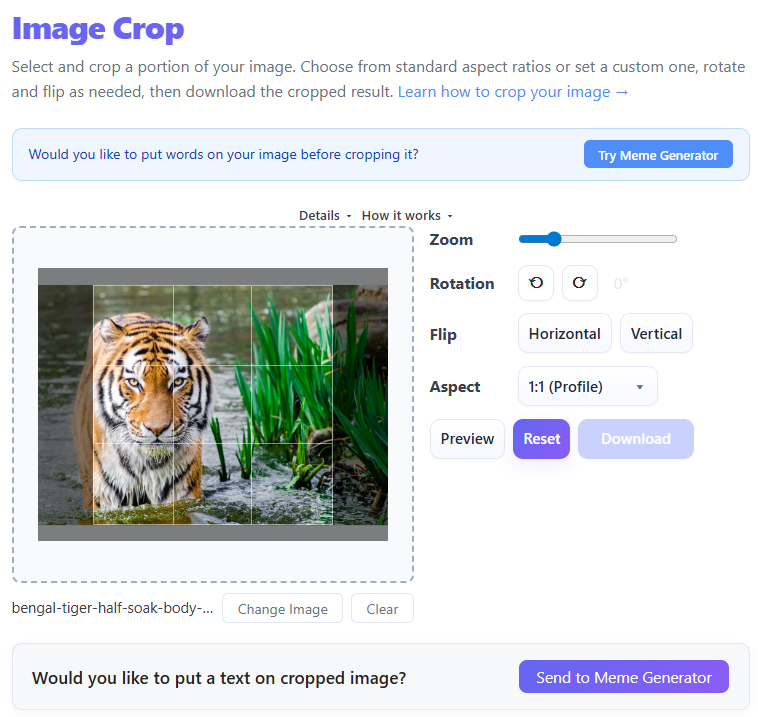
Image Crop
Precision cropping tools for any situation. Use fixed aspect ratios for profile pictures and headers, or free-form selection to eliminate distractions and zoom in on the most important details of your shots.
Use Tool →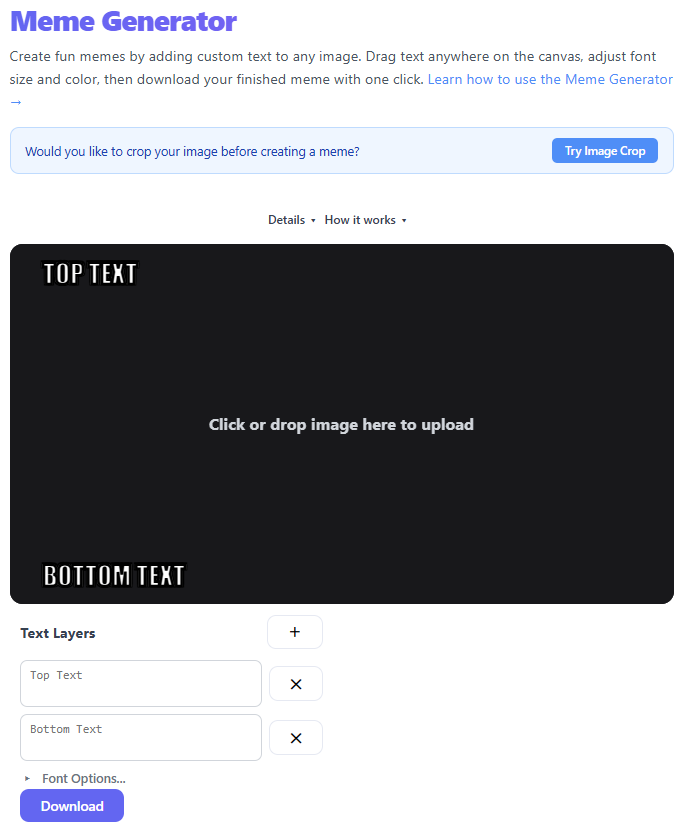
Meme Generator
The fastest way to turn your ideas into viral content. Use classic meme fonts, add multiple text layers, and customize colors. Completely client-side, so your funny ideas stay private until you share them.
Use Tool →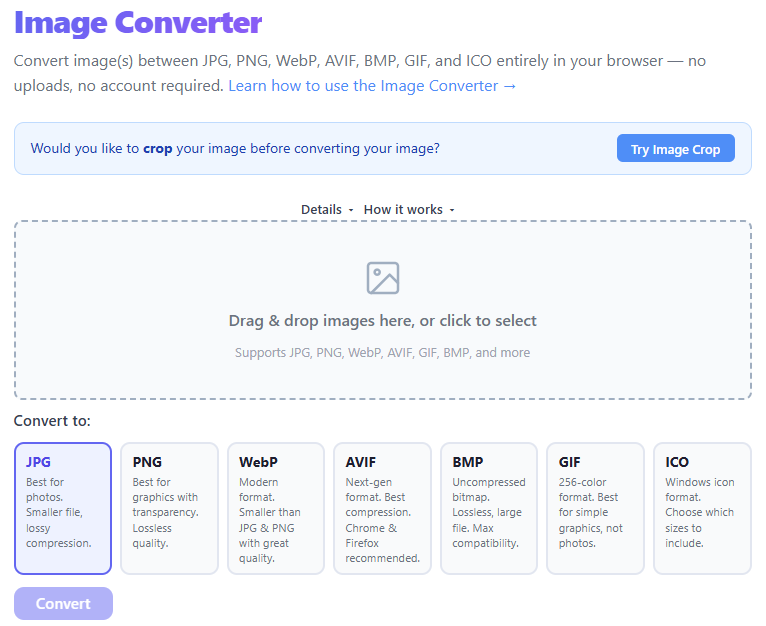
Image Converter
Multi-format conversion engine for the modern web. Instantly switch between JPG, PNG, WebP, and more. Optimize your file sizes for web performance or convert to lossless formats for archiving and editing.
Use Tool →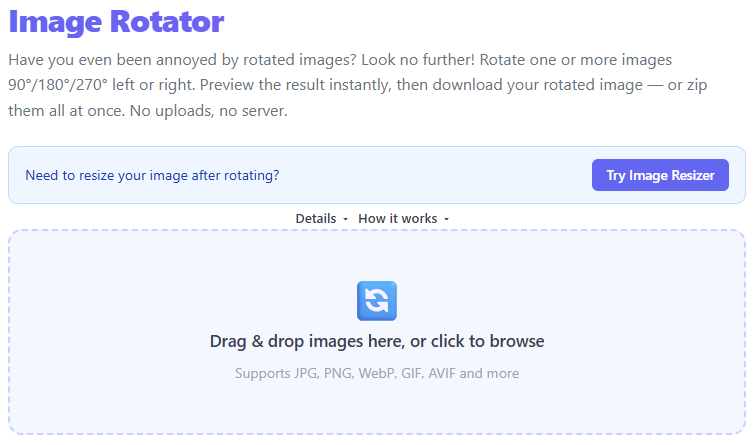
Image Rotator
Correct orientation issues instantly. Rotate photos by 90-degree increments or flip them horizontally and vertically to fix mirror effects or sideways mobile uploads with zero loss in quality.
Use Tool →The Complete Guide to Online Image Editing
1. Understanding Browser-Based Image Editing
In the digital age, images are the primary medium of communication. Whether you are a social media influencer, a marketing professional, or a developer, you need reliable tools to manipulate images quickly. Our platform offers a suite of image tools that run entirely in your web browser. This means you don't need to download heavy software like Photoshop or GIMP for simple tasks. By utilizing modern web technologies like the Canvas API and WebAssembly, we provide a smooth, fast, and secure editing experience. Our tools are designed to be intuitive: just drag and drop your file, apply your changes, and download the result. Because the processing happens on your own computer, there is no waiting for uploads or downloads to a central server, making the workflow significantly faster for batch operations or high-resolution files. This decentralized approach also means you can work even if your internet connection is slow, as long as the initial page has loaded.
2. Modern Image Tool Categories
Explore our specialized image editing categories designed for every possible need.
Image Optimization
- Image Resizer Adjust the pixel dimensions of your images to fit specific platform requirements while maintaining the aspect ratio to prevent distortion.
- Image Crop Focus on the most important part of your photo by removing unwanted edges or fitting specific rectangles like square profile pictures.
Format Conversion
- Image Converter Safely transform your files between popular formats like PNG, JPG, and WebP to balance file size against visual transparency and quality.
Creative Tools
- Image Collage Tell a story by merging multiple photos into a single, cohesive layout with custom spacing and arrangement colors.
- Meme Generator Engage your audience with viral humor by adding top and bottom captions to any image template or your own uploaded photos.
- Watermarker Protect your intellectual property by overlaying semi-transparent text or logos, ensuring your brand stays with your work.
3. Choosing the Right Image Format
Understanding the technical differences between image formats is key to web performance and visual quality.
| Format Name | Optimal Use Case |
|---|---|
| JPEG (Joint Photographic Experts Group) | Best for photographs and realistic images with smooth gradients. Offers high compression but lacks transparency. |
| PNG (Portable Network Graphics) | Ideal for logos, icons, and graphics that require transparent backgrounds or pixel-perfect precision. |
| WebP (Google Web Format) | Modern standard for the web. Provides superior compression for both lossy and lossless images with transparency support. |
Optimizing images for the web reduces page load times and improves SEO rankings significantly.
4. Common Creative Workflows
How our users frequently combine these tools for professional results.
Social Media Content Creation
Prepare a perfect Instagram post by first cropping to a 1:1 square, then resizing to 1080x1080 pixels, and finally adding a subtle watermark.
Try combining these with Image Resizer.
Branding for Photographers
Scale down high-resolution RAW exports to web-friendly 2000px widths and apply a semi-transparent logo watermark before sharing with clients.
Try combining these with Watermarker.
Marketing Campaign Assets
Convert heavy PNG screenshots into optimized WebP formats to save bandwidth on your landing page while maintaining high clarity.
Try combining these with Image Collage.
5. Why Client-Side Privacy Matters
Unlike many online converters that require you to upload your personal photos to their servers, our tools handle everything locally. This 'client-side' approach has several major benefits:
- Security: Your images never leave your device. There is no risk of them being intercepted during transit or stored in a database without your permission.
- Privacy: We don't see what you edit. Whether it's personal family photos or sensitive business documents, your data remains yours alone.
- Compliance: Our architecture naturally aligns with strict data protection regulations like GDPR and CCPA by design.
- Speed: Large 4K images don't need to be uploaded, which can save minutes on slow connections.
6. Pro Tips for High-Quality Visuals
Get the most out of our tools with these pro-level image editing tips.
- Preserve Asset Quality: Always start with the highest resolution source available. It is easy to scale down, but scaling up will always result in blurriness.
- Understand Aspect Ratio: When resizing, always lock the aspect ratio unless you deliberately want to stretch or squish the image.
- Use WebP for Modern Browsers: WebP files are typically 25-35% smaller than JPEGs at the same quality level, making your websites much faster.
- Optimize Watermark Opacity: A watermark should protect your work without distracting from it. Aim for 20-40% opacity for a professional look.
- Leverage Contrast for Memes: When making memes, use white text with a black outline. This ensures the text is readable over any color in the background.
7. Frequently Asked Questions
Is there a file size limit for the image tools?
Since the processing happens in your browser, the limit is mostly determined by your computer's RAM. Most modern devices can easily handle images up to 50MB-100MB.
Will my images look blurry after resizing?
Our resizer uses high-quality interpolation algorithms (like Lanczos) to ensure that scaling down remains sharp while scaling up is as smooth as possible.
Can I convert images back to JPG from WebP?
Yes! Our converter supports bi-directional conversion. You can convert to WebP for your website and back to JPG if you need to print them later.
Are the tools free to use for commercial projects?
Absolutely. All tools on this platform are free for both personal and professional use without any hidden costs or accounts.
Does the collage maker support custom layouts?
We offer several popular grid presets that automatically adapt to the number of images you upload, giving you a balanced look every time.
8. Real-World Use Cases
Our image toolkit is used by thousands of people every day for various real-world applications.
- E-commerce Owners: Batch resize product photos to uniform dimensions and convert them to WebP to ensure their online store loads instantly for customers.
- Social Media Managers: Quickly generate memes for trending topics or add brand logos to viral content before posting it to Twitter or Instagram.
- Web Developers: Crop hero images to specific aspect ratios (like 16:9 or 21:9) and optimize the quality-to-size ratio for better Core Web Vitals.
- General Users: Combine vacation photos into a collage for sharing with family, or simply rotate and flip accidentally sideways phone photos.
Why Use THRJ Tech Image Tools?
Whether you need to resize photos, crop images, create collages, add watermarks, or convert between formats, THRJ Tech's image tools are built to streamline common image-editing tasks directly in your browser.