PDF Converter
Quickly convert PDF pages into high-quality JPG or PNG images. Choose the output format, preview the converted result, and download images for sharing, thumbnails, or embedding — no account required. Learn how to convert PDF →
What is PDF conversion
PDF-to-image conversion renders each page of the document as a raster image at a defined resolution. The output is a set of image files (one per page) that capture the visual appearance of the PDF — including text rendered as pixels, embedded images, and vector graphics rasterized at the specified DPI.
When to convert
Converting PDF pages to images is appropriate when you need to embed document content in a context that doesn't support PDF rendering (for example, web pages that display static thumbnails, presentation slides, or messaging platforms that only accept images).
How conversion behaves
A PDF-to-image converter renders each page at a fixed resolution and saves the result in the chosen format. The quality and file size of the output depend on the resolution (DPI) and the selected image format.
Quality and performance
- Resolution: Higher DPI produces sharper images but larger files.
- Format: JPEG uses lossy compression (smaller files, visible artifacts at low quality); PNG uses lossless compression (larger files, no artifacts, supports transparency).
- Processing time: Each page requires independent rendering; multi-page PDFs take proportionally longer.
Benefits of conversion
- Makes PDF content usable in image-only contexts.
- Allows individual pages to be shared, cropped, or annotated as images.
- Produces a visual representation that matches the exact PDF rendering.
Privacy & retention
Files are processed on short-lived server infrastructure. Converted images are made available for download and then deleted automatically after a short retention window. Do not upload documents containing personal or sensitive information if you cannot accept the associated privacy risk.
Practical tips
- For thumbnails or web previews, lower DPI (72–96) is usually sufficient.
- For high-quality archival images, use higher DPI (150–300) and PNG.
- For large PDFs, convert only the pages you actually need.
Useful when
- You need to share individual pages as images.
- You want to embed PDF pages in presentations or web content.
- You need to extract visual content from a PDF.
FAQ
- Q: Does the conversion preserve all visual content? A: Yes — the converter renders the page at the specified DPI, capturing text, images, and graphics as they appear in the PDF.
- Q: Can I convert a multi-page PDF? A: Yes — each page is converted to a separate image file.
- Q: Which format is better, JPG or PNG? A: JPG for smaller files with minor quality loss; PNG for lossless quality with transparency support.
- Q: Why is my output image blurry? A: The DPI setting may be too low. Try a higher resolution setting.
- Q: Can I convert password-protected PDFs? A: Not directly — the PDF must be unlocked before conversion.
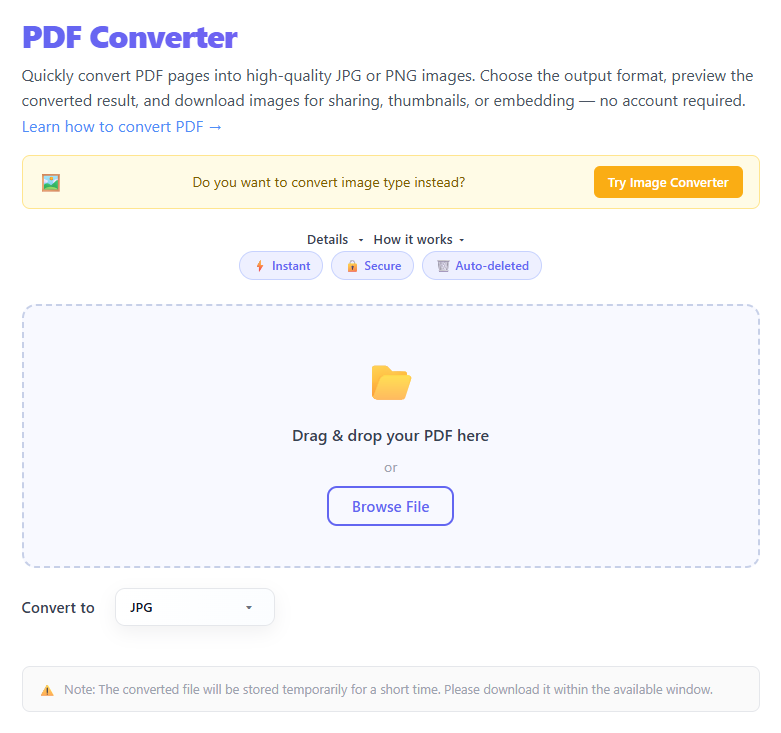
Drag & drop your PDF or click Browse File to choose one. The file name and size are shown in the drop zone.
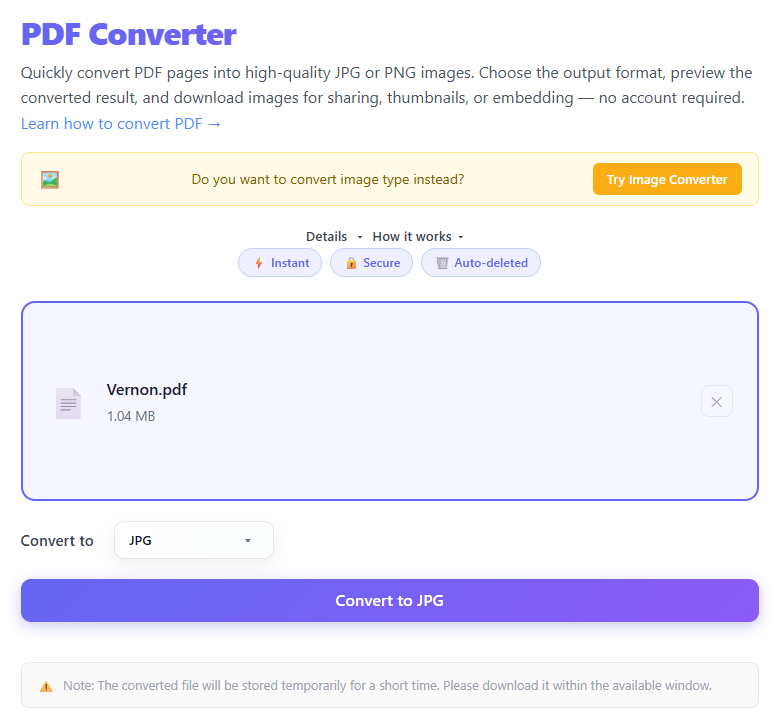
Select the output format (JPG or PNG) using the Convert to selector.
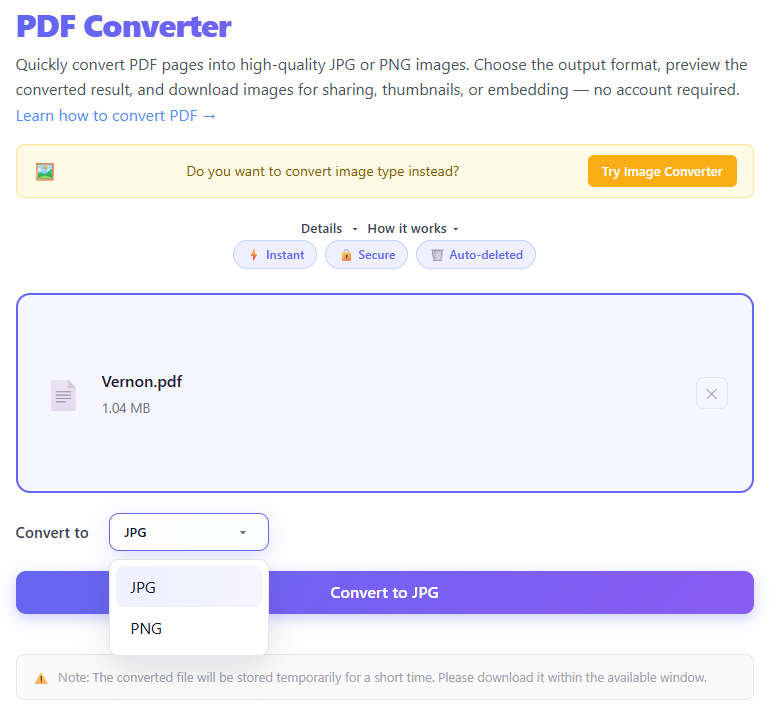
Tap Convert. A progress bar shows upload and conversion status.
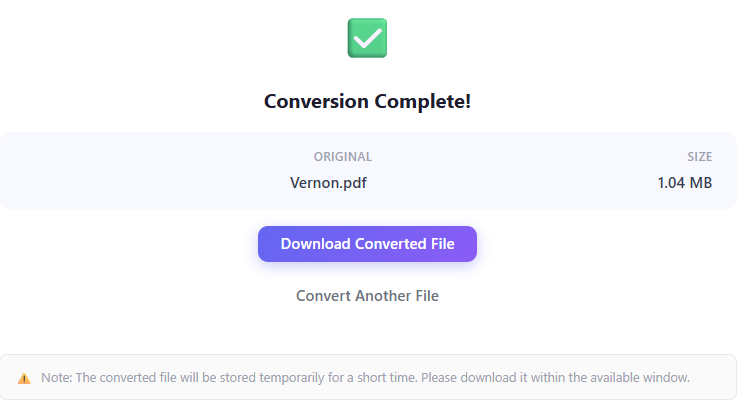
When ready, the converted image appears with a Download button.
PDF to Image Conversion: A Technical Deep Dive into Client-Side Rasterization
Converting a PDF to JPG or PNG is not simply a format swap — it is a precise client-side rasterization pipeline. The browser parses the PDF binary stream, reconstructs each page's vector paths, text glyphs, and embedded images, and renders them onto an HTML5 canvas at a configurable DPI before encoding the bitmap to your chosen format.
👉 In this guide, you'll learn exactly how PDF pages are rasterized in the browser, how DPI scaling affects pixel dimensions, why PNG and JPG handle transparency differently, and what happens to interactive elements during conversion.
⚙️ Client-Side Rasterization Architecture
PDF.js — Mozilla's open-source PDF rendering engine — is the foundation of browser-based PDF-to-image conversion. It operates as follows:
- 📂 Binary stream parsing: PDF.js reads the PDF cross-reference table and resolves indirect object references to locate each page's /Page dictionary.
- 🖼️ Canvas rendering: Each page's content stream (text operators, path operators, image XObjects) is painted onto an off-screen HTML5 canvas element using the browser's 2D rendering context.
- 📤 Image encoding: The completed canvas bitmap is encoded to JPG (via canvas.toDataURL image/jpeg with quality) or PNG (via canvas.toDataURL image/png) and made available for download.
Because everything runs inside the browser's JavaScript sandbox, your PDF never leaves your device. Complete data privacy is guaranteed by design — no file upload, no server processing.
📐 DPI Scaling & Viewport Resolution
- 📏 A standard PDF page uses user-space units where 1 point = 1/72 inch. To target 150 DPI, the canvas transformation matrix is scaled by 150/72 ≈ 2.08×.
- 🖥️ At 150 DPI, a US letter page (8.5 × 11 in) produces a canvas of 1275 × 1650 pixels. At 300 DPI, that doubles to 2550 × 3300 pixels.
- 🔍 Higher DPI means sharper text glyphs and finer vector lines — critical for technical drawings, schematics, or documents with small font sizes.
- 💾 DPI directly controls file size: a 300 DPI PNG can be 4× larger than a 150 DPI PNG because the pixel count doubles in each dimension.
🔒 Client-Side Privacy Guarantee
PDF.js runs entirely in your browser's local JavaScript execution environment. Your PDF is loaded into browser RAM and rendered without any network transmission. Sensitive documents — financial statements, medical records, legal contracts — are processed exclusively on your device. When you close or refresh the tab, all file data is immediately released from memory.
🧠 Why Output Quality Varies Between PDF Sources
Not all PDFs are equal. A PDF created from a high-resolution vector source renders with perfect crispness at any DPI. A scanned PDF, however, contains only raster image XObjects embedded at a fixed resolution — rasterizing such a page at 300 DPI will simply upscale an already-pixelated image, not recover lost detail. Additionally, PDFs that rely on custom CMYK color profiles require a color space mapping step during canvas rendering, which can introduce subtle hue shifts.
✅ Best Practices for High-Quality Rasterization
- 🔹 For web thumbnails, 96–150 DPI with JPG delivers a strong size-to-quality ratio without visible artifacts.
- 🔹 For print-ready or archival images, use PNG at 300 DPI to meet standard print resolution requirements.
- 🔹 If the PDF contains transparent layers or vector logos, always select PNG — JPG will flatten transparency to white.
- 🔹 Avoid re-converting an already-rasterized image back through the pipeline — each rasterization step degrades quality.
- 🔹 For large multi-page PDFs (100+ pages), convert only the pages you need to stay within browser RAM limits.
🧩 Common Rasterization Use Cases
- 🖼️ PDF → PNG — documents with transparent backgrounds, vector logos, or diagrams requiring lossless fidelity
- 📷 PDF → JPG — social media sharing, email attachments, or web embeds where file size is the priority
- 🏗️ Architectural & engineering drawings — PNG at 300 DPI to preserve hairline strokes and dimension text
- 📄 Document preview thumbnails — JPG at 96–150 DPI for fast-loading, compact previews
⚠️ Common Rasterization Mistakes to Avoid
- ❌ Using too low a DPI — text glyphs and fine lines render as blurry, unreadable pixels
- ❌ Choosing JPG for transparent-background PDFs — transparent pixels are composited to solid white (#FFFFFF)
- ❌ Ignoring CMYK source profiles — heavy color compression in JPG can shift CMYK-mapped hues in the sRGB output
- ❌ Not reviewing edge rendering — check sharp high-contrast edges (borders, text outlines) for DCT quantization artifacts
- ❌ Converting massive PDFs all at once — each page bitmap consumes browser RAM; process in batches for very large documents
💡 Pro Tips
- 📌 For web thumbnails, 96–150 DPI with JPG gives a great size-to-quality ratio with minimal visible artifacts
- 📌 For archival or print-ready images, choose PNG at 300 DPI for lossless fidelity
- 📌 If your PDF has transparent layers or vector logos, always choose PNG to preserve the alpha channel
- 📌 Keep the original PDF as your source of truth — never re-rasterize an already-converted image
🚀 Step-by-Step: How the Browser Rasterizes a PDF Page
- 📤 Upload your PDF — the file is read into browser memory via the FileReader API without any server upload
- 🎯 Select output format — JPG for smaller files (lossy DCT compression), PNG for lossless pixel-perfect output
- ⚙️ PDF.js parses the page dictionary, applies the DPI scaling matrix, and renders the page onto an off-screen canvas
- 📥 The canvas bitmap is encoded and provided as a download — your PDF never left your device
The entire pipeline executes in the browser's JavaScript sandbox. No file is transmitted to any external server at any point.
🔬 Rasterization & Export Handling: PNG vs JPG
| PDF Element | PNG Export Handling (Lossless) | JPG Export Handling (Lossy) |
|---|---|---|
| Transparent Backgrounds | Alpha channel preserved; backgrounds remain transparent | Alpha channel unsupported; transparent pixels flattened to solid white (#FFFFFF) |
| Vector Graphics & Lines | Rendered with exact pixel boundaries; lossless LZW/Deflate compression | Susceptible to DCT quantization artifacts around sharp, high-contrast edges |
| CMYK Color Spaces | Mapped to sRGB color profiles during canvas rasterization | Mapped to sRGB; heavy compression may slightly shift color fidelity |
| File Size (Per Page) | Higher file size due to lossless LZW/Deflate compression | Lower file size, controlled by quality percentage (e.g., 80% quality) |
❓ Frequently Asked Questions
The JPG format does not support an alpha channel. When the browser's canvas rasterizer encounters a transparent pixel, it must composite it against a solid background color — by convention this defaults to opaque white (#FFFFFF). If your PDF contains transparent layers or logos with no background, choose PNG, which fully preserves the alpha channel.
PDF.js reads the document's page tree (/Pages dictionary) and renders one page at a time onto an off-screen HTML5 canvas element. Each canvas holds a single page's rasterized bitmap in browser RAM. For a 100-page A4 document at 150 DPI, a single page bitmap is roughly 1240 × 1754 pixels × 4 bytes (RGBA) ≈ 8.7 MB. Since pages are processed sequentially and the canvas is reused, peak RAM usage stays bounded to a few pages rather than the entire document.
Yes — PDF.js parses the font descriptor dictionaries inside the PDF binary stream and reconstructs embedded OpenType and TrueType font subsets directly in the browser. The glyphs are rendered as vector outlines onto the canvas before the canvas is encoded to a raster image, so the final pixel output reflects the exact font shapes from the source PDF.
DPI is applied as a scaling factor to the canvas rendering matrix. A standard PDF page is defined in user-space units (1 point = 1/72 inch). To render at 150 DPI, the renderer scales the canvas transformation matrix by 150/72 ≈ 2.08×. A letter-size page (8.5 × 11 in) therefore produces a canvas of 1275 × 1650 pixels at 150 DPI, or 2550 × 3300 pixels at 300 DPI.
Yes — rasterization converts the PDF's vector and text layers into a flat bitmap. All interactive elements such as AcroForm fillable fields, JavaScript actions, embedded hyperlinks, and annotation overlays are permanently discarded in the output image. Only the visual appearance of those elements (e.g., a blue underlined link text) is preserved as pixels.
PNG uses lossless compression (LZW/Deflate), meaning every pixel is stored exactly as rasterized — no data is discarded. JPG uses lossy compression based on Discrete Cosine Transform (DCT): the algorithm discards high-frequency color information that is less perceptible to the human eye. For text-heavy PDFs, JPG compression can introduce ringing or blurring around character edges at quality settings below ~85%.
PDF encryption is enforced at the document level via the /Encrypt dictionary. The browser renderer (PDF.js) supports user-password decryption — if you supply the correct password, the document is decrypted in memory and can be rasterized normally. Owner-password restrictions (which control printing and content extraction) are a separate permission layer and may block rasterization on some implementations.
Because PDF.js runs entirely inside your browser's JavaScript sandbox, your PDF file is loaded into local browser RAM and never transmitted over a network connection to an external server. Sensitive documents — such as financial statements, medical records, or legal contracts — are processed exclusively on your device. Once you close or refresh the tab, the file data is released from memory.
Pixelation occurs when the rasterization DPI is set lower than the display resolution of the target medium. For standard HD screens (96 PPI), a render DPI of at least 96 is recommended for pixel-perfect display. For print output, use 300 DPI to meet typical print resolution requirements. Blurriness can also occur if the source PDF contains low-resolution embedded raster images that cannot be sharpened during rasterization.
Yes — PDF.js exposes a page-level rendering API that allows rendering of any page by its index. Rather than iterating through the full page tree, the renderer can jump directly to a specific page dictionary. This makes selective conversion highly memory-efficient, as only the target pages are decoded and rasterized, leaving the rest of the document unprocessed in memory.