Image Collage
Combine multiple images into a beautiful grid collage. Arrange photos into rows and columns, set a custom canvas size, then download the result as a single image. Learn how to create an image collage →
What is Image Collage
A collage combines multiple images into a single tiled layout on a shared canvas. You control rows, columns, spacing, and final canvas dimensions to create social posts, montages, product previews, or portfolio images. Assembly happens locally in the browser, producing a single raster image you can download or share. This keeps your originals private unless you explicitly upload or use a sharing workflow.
How the collage works
The tool computes each cell's placement by dividing the canvas into a uniform grid based on the selected rows and columns. For every cell it calculates a "cover" rectangle so the image fills the slot without leaving gaps; users can then pan and scale each image within its cell to adjust framing and composition. When you finalize the collage the images are drawn onto an offscreen HTML canvas at the chosen export resolution and exported as a PNG for download.
Design choices and tradeoffs
- Quality vs. Size: Higher canvas sizes preserve detail but increase memory usage and final file size. For most social media scenarios, 1200–2048px on the long edge balances clarity and performance.
- Performance: All decoding and compositing are performed client-side. Very large canvases or many high-resolution images can slow the UI or exhaust browser memory — reduce export size or source resolutions for better responsiveness.
- Consistency: Fixed cell sizes ensure a predictable layout; tweak spacing and border color to alter the visual rhythm of the collage.
Practical tips
- Start with lower-resolution images while composing and previewing, then use originals for the final export if necessary.
- Use the "lock ratio" option to keep proportional scaling when changing canvas dimensions so your layout doesn't distort.
- Adjust border gap to create breathing room or tight tiles depending on your design goal.
- If an image looks soft at export, either increase the canvas resolution or supply a higher-resolution source image.
Accessibility & UX
Controls are labeled and keyboard accessible, and preview mode scales to smaller screens so users can accurately inspect and adjust images before exporting. Large hit targets and clear visual focus help when using touch devices or screen magnification.
When to use a collage
- Creating social media posts that combine multiple shots into a single, shareable image.
- Building product grids or marketing montages for newsletters, landing pages, or ads.
- Quickly assembling family photo montages or event highlights to share with friends and family.
Export options
By default the final canvas is exported as a PNG to preserve quality. If you need smaller web-friendly files you can convert the PNG to a JPEG at a chosen quality level using an external image editor or additional client-side encoding step. Filenames include a timestamp to keep exports unique and easily traceable.
Privacy & sharing
Collage generation occurs entirely on your device — the images do not leave your browser unless you explicitly upload or share them via the app's sharing/watermarking workflow. If you choose to use the watermark or sharing features those steps will present clear prompts and require confirmation before any upload occurs.
Limitations
- Very large canvases (for example, >10000px) may be limited by browser memory or implementation limits.
- Animated sources (GIF/WebP) are flattened to a single frame during export.
- Embedded color profiles may be handled differently by different browsers and can affect exported color fidelity.
FAQs
- Q: How many images can I use? A: Best for small to medium batches (roughly 4–25 images); very large sets can degrade performance depending on client resources.
- Q: Will image quality be preserved? A: Quality depends on chosen canvas export size and the source resolutions — use higher-resolution originals for larger exports.
- Q: Can I reorder or remove images? A: Yes — use the file list controls to move or delete items before generating the final collage.
- Q: Does this run in my browser? A: Yes — collage assembly is client-side; nothing is uploaded unless you explicitly use a sharing feature.
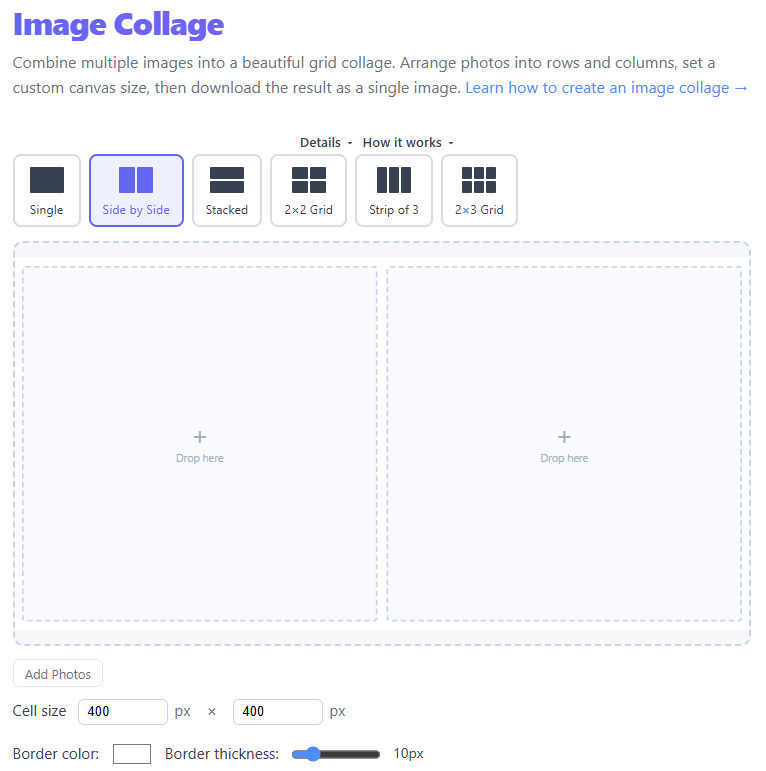
Select a template
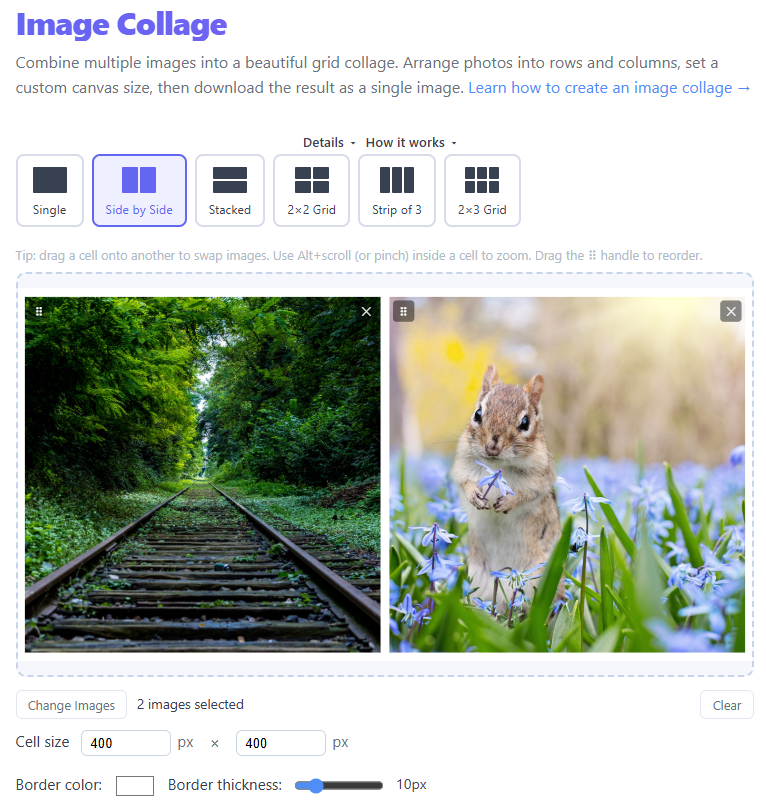
Upload images and arrange them as you like
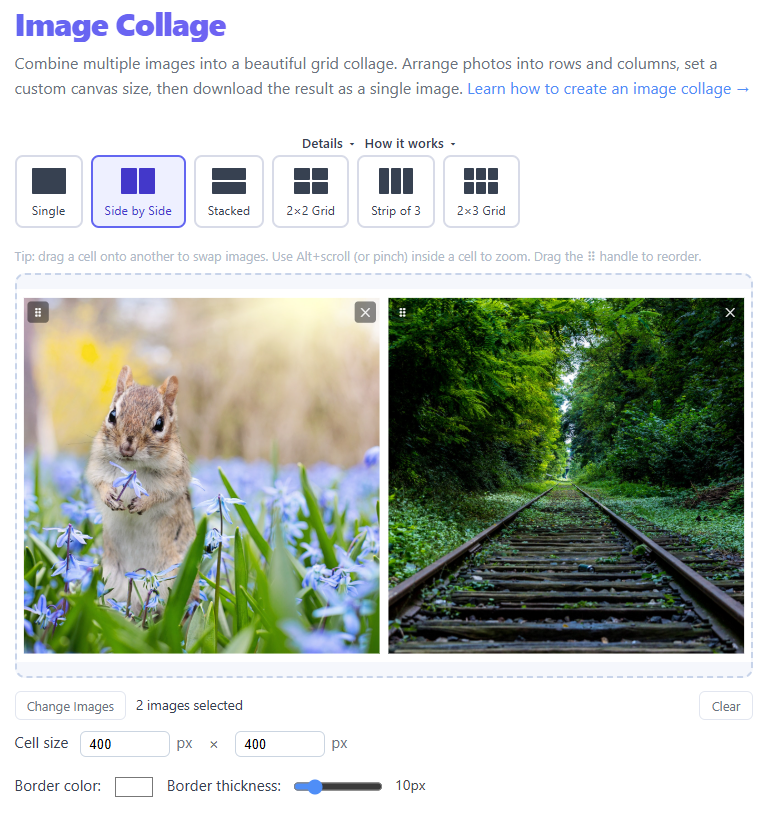
Swap images by dragging them to each other's position
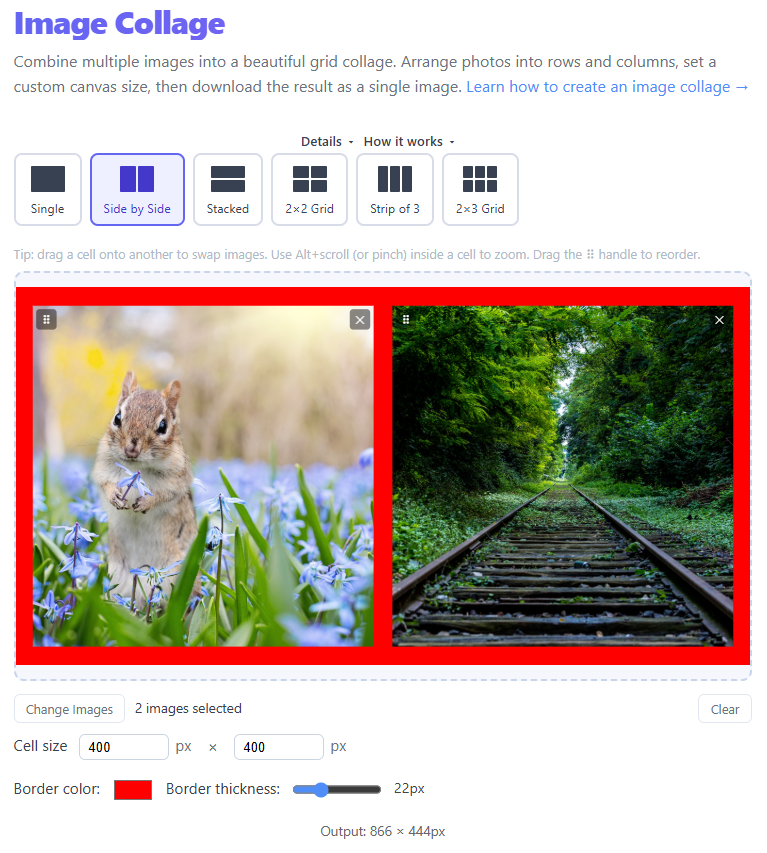
Change border color and thickness for a custom look and download your collage
How to Create Stunning Image Collages That Tell a Story
Introduction
Sometimes one photo isn't enough. Whether you're capturing a trip, showcasing products, or sharing moments on social media, a single image can feel limiting. That's where image collages come in.
By combining multiple images into one, you can:
- Tell a richer story
- Show variety in a single frame
- Create eye-catching visuals
In this guide, you’ll learn how to design effective image collages, when to use them, and how to make them look professional (not messy).
What Is an Image Collage?
An image collage is a collection of multiple images arranged into one unified composition. Instead of viewing photos individually, a collage lets you present them together, create meaning through arrangement, and highlight connections between images.
Best examples of image collages
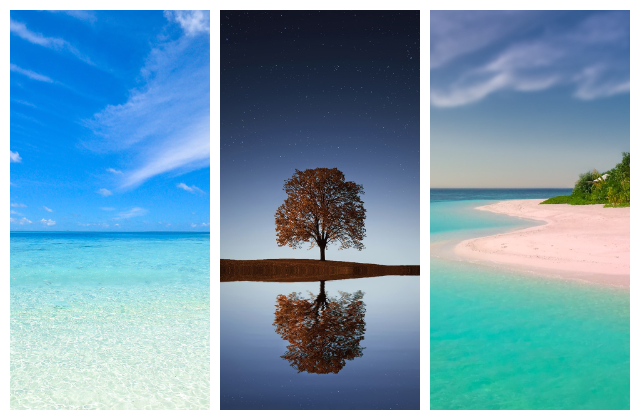
Made with template 'Strip of 3' and Cell size 200px x 400px.
Why Use Image Collages?
- Tell a Complete Story — A single image shows one moment. A collage shows before and after, different angles, or a sequence of events.
- Maximize Limited Space — On social media, websites, or thumbnails you often have limited space. A collage allows you to show multiple visuals in one post.
- Create Strong Visual Impact — Collages stand out because they contain more information and naturally attract attention.
- Showcase Variety — Perfect for product galleries, portfolio previews, and feature comparisons.
Types of Image Collage Layouts
🔲 Grid Layout — Clean and structured — equal-sized images, great for portfolios.
🧩 Freeform Layout — Different sizes and positions — more creative and dynamic.
🎯 Themed Collage — Focused on a single concept — consistent colors or subject.
🔍 Before & After Collage — Shows transformation — common in tutorials and comparisons.
Best Practices for Creating a Great Collage
- Start With a Clear Purpose — Ask yourself: What story am I telling?
- Choose Related Images — Images should share a theme and similar tone or subject.
- Keep It Simple — Too many images can overwhelm viewers — 3–6 images is often ideal.
- Use Consistent Spacing — Spacing creates balance and readability.
- Maintain Visual Balance — Avoid one side being too heavy.
- Pay Attention to Background — A good background supports the images and doesn't distract.
Common Mistakes to Avoid
- Mixing unrelated images
- Using too many photos
- Poor alignment
- Inconsistent image quality
- Overcomplicated layouts
Step-by-Step: How to Create an Image Collage
- Upload your images
- Select a layout (grid or custom)
- Arrange images in desired order
- Adjust spacing and alignment
- Preview the final composition
- Download your collage
Try it here:
Technical Architecture
This tool performs all image composition client-side using the HTML5 Canvas API. Source files are read into memory via FileReader and drawn to an offscreen canvas with drawImage(). No user images are uploaded to any server — the browser performs all processing, compositing, and export. For very large inputs the app streams drawing operations into a single canvas to avoid creating many intermediate bitmaps.
Why client-side?
Client-side rendering preserves user privacy, reduces server costs, and avoids network latency. The exported image is produced with canvas.toDataURL() or canvas.toBlob() and offered for download directly in the browser.
Canvas Resolution & DPI Scaling
The final canvas pixel dimensions are computed from cells, gaps and borders: width = cols*cellWidth + (cols+1)*gap, height = rows*cellHeight + (rows+1)*gap. To target print-quality output (e.g. 300 DPI), convert inches to pixels: pixels = inches × DPI. For example, an 8"×10" print at 300 DPI requires 2400×3000 px. Use the cell size inputs to plan desired export resolution — the tool shows computed output pixels in the UI.
Aspect Ratio Preservation & Fitting Strategy
Each source image may have a different aspect ratio than its target cell. We compute the image ratio and cell ratio and select a cover-style fit so the cell is fully filled. The algorithm calculates a base draw width/height preserving the image aspect ratio, then applies the user scale and offset. This avoids letterboxing and keeps focal areas centered; users can pan/zoom individual cells to adjust the visible region.
Layout vs. Social Media Specs
| Layout Type | Recommended Output Dimensions | Optimal Use Case |
|---|---|---|
| 2×2 Grid | 1080 × 1080 px (1:1) | Instagram Feed, Square Product Displays |
| Side by Side (1×2) | 1200 × 630 px (1.91:1) | Open Graph Headers, Facebook Posts |
| Strip of 3 (1×3) | 1080 × 1920 px (9:16) | Mobile Stories, Pinterest Pins |
| Stacked (2×1) | 1200 × 1200 px | Portfolio Side-by-Side Comparisons |
Technical FAQ
How do browser memory limits affect high-resolution exports?
Large canvases consume memory proportional to width×height×4 bytes per pixel. Exports above ~100 megapixels may fail on low-memory devices. To reduce memory use, lower cell sizes, export at smaller DPI, or split the collage into multiple exports.
Do JPEG/PNG/WebP preserve transparency when border spacing is applied?
PNG and WebP (with alpha) preserve transparency; JPEG does not. If you use transparency for gaps, export as PNG or WebP to retain alpha channels.
How can I prevent blurriness when combining images of different resolutions?
Choose cell sizes less than or equal to the native resolution of your source images, avoid upscaling, and prefer high-resolution source photos for print targets. The tool displays native image dimensions in the preview meta to help decide.
How are color profiles handled (sRGB vs. Display P3)?
The Canvas API operates in the browser's color space (typically sRGB). Complex color-management (ICC profile embedding or Display P3 preservation) is not performed — for accurate print color across wide-gamut devices, export and post-process in a color-managed editor.