Video to GIF
Convert any video clip to an animated GIF — free, instant, and private.
What is Video to GIF?
This tool extracts frames from a video clip and encodes them as an animated GIF — entirely inside your browser. No data is uploaded to any server.
Privacy
Your video file never leaves your device. All processing happens locally using browser APIs.
Limitations
GIFs support a maximum of 256 colors per frame, so they are best suited for short clips (under 15 seconds). Large or high-frame-count conversions may take a moment to process.
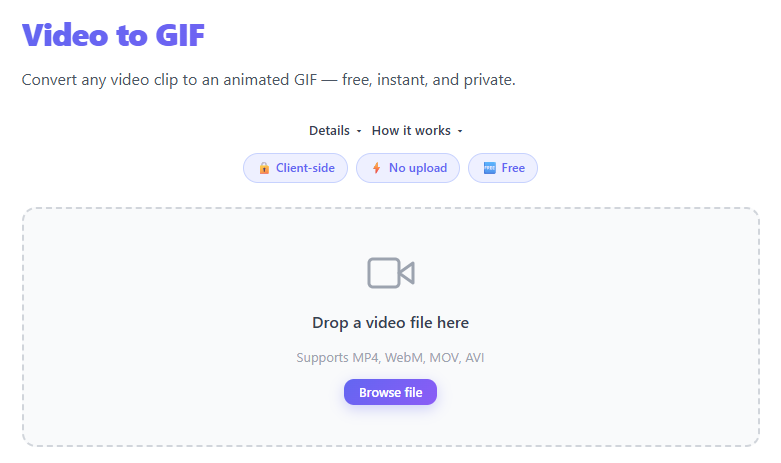
Drop or browse for a video file (MP4, WebM, MOV, AVI).
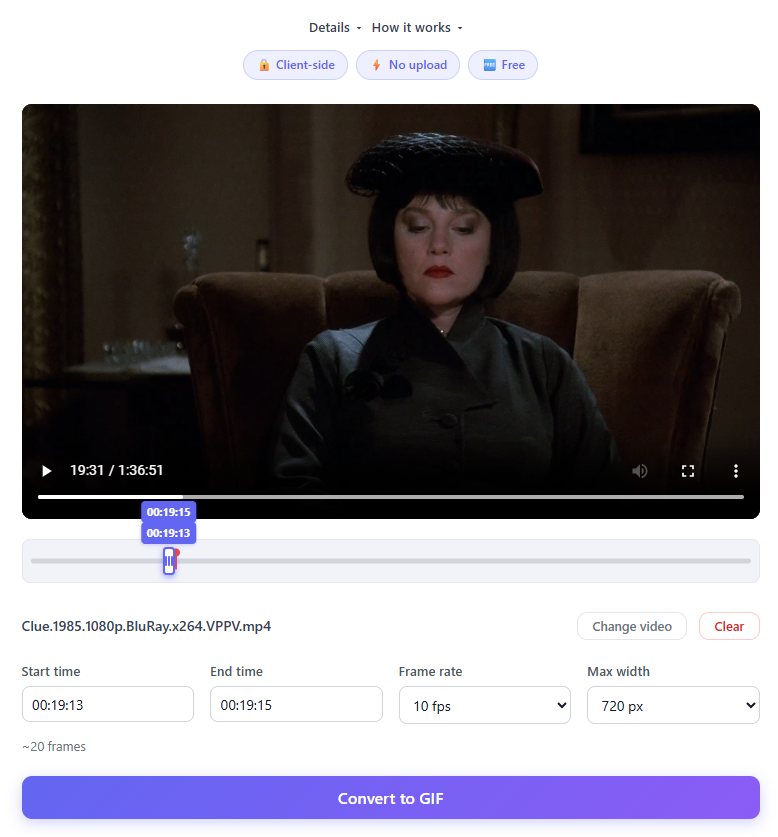
Set the clip range using Start Time, End Time, Frame Width then Click on 'Convert to GIF'.
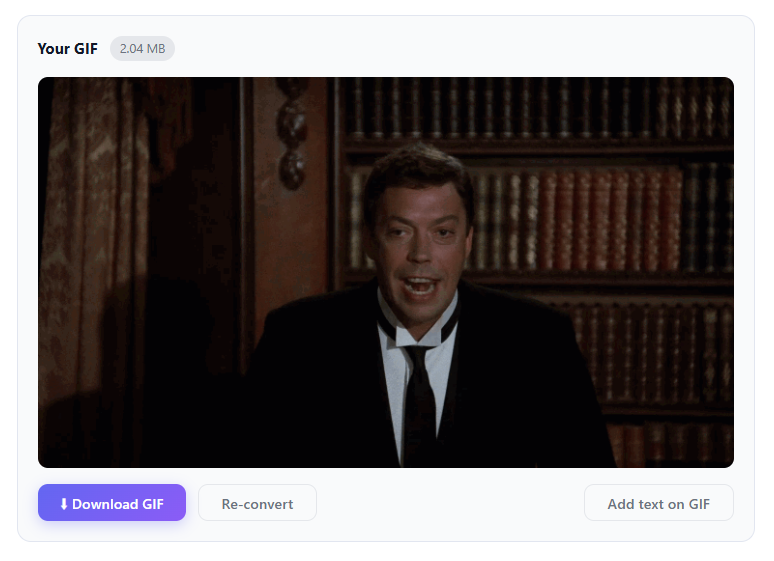
Preview the generated GIF. If needed, adjust settings and re-convert until you're happy with the result.
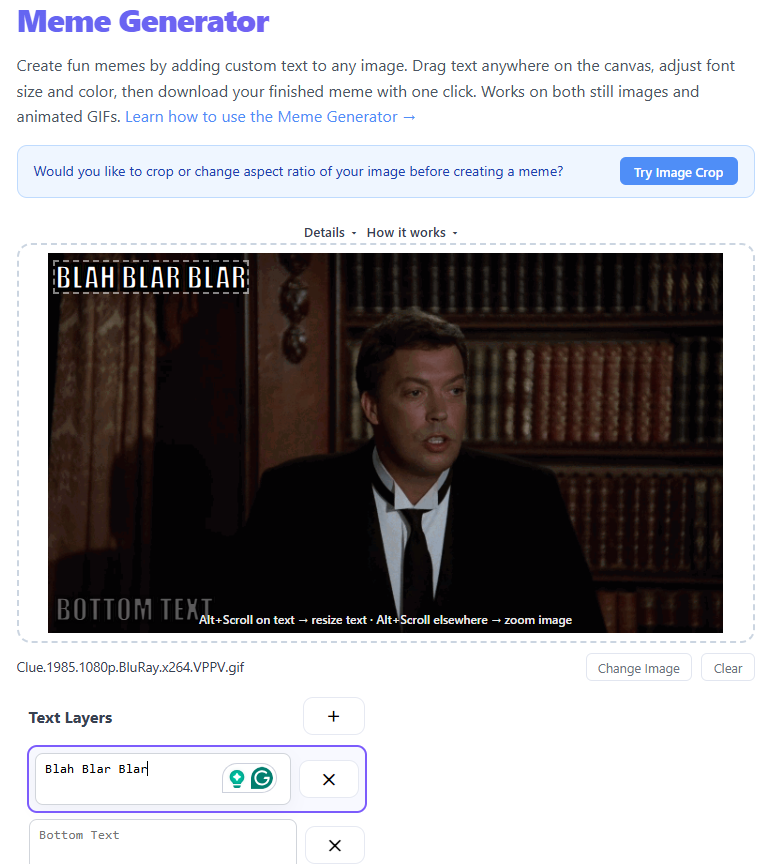
Click on 'Add text on GIF' (optional) to open the GIF editor where you can add captions, stickers, and more. Then download your final GIF.
Drop a video file here
Supports MP4, WebM, MOV, AVI
Video to GIF Converter - Turn Any Video Into a Shareable GIF
Animated GIFs are everywhere: social media reactions, tutorials, bug reports, product demos, memes, and even marketing emails. A good GIF captures attention faster than static images while staying lighter and easier to share than full videos.
With THRJTech Video to GIF Tool, you can quickly convert MP4, MOV, WebM, and other video formats into high-quality GIFs directly in your browser.
Why Convert Videos to GIFs?
GIFs are popular because they autoplay almost everywhere and are easy to embed into websites, chats, blogs, and social media platforms. Many modern tools now focus on browser-based conversion with customizable FPS, trimming, and size controls.
Common Use Cases
- 🎬 Meme and reaction GIFs
- 🧑🏫 Tutorial snippets for blogs or documentation
- 🐞 UI bug demonstrations
- 🛍️ Product showcase animations
- 📧 Animated email previews
- 🎮 Gaming highlights
Key Features of THRJTech Video to GIF
1. Fast Browser-Based Conversion
The tool works directly in your browser, meaning your files do not need to be uploaded to a server. This approach improves privacy and reduces waiting time. Modern converters increasingly use browser-side processing with WebAssembly and FFmpeg-based technology. By leveraging C/C++ libraries compiled into WASM (like ffmpeg.wasm), video decoding and frame extraction can run smoothly within the browser sandbox structure.
Benefits
- 🔒 Better privacy
- ⚡ Faster processing
- ☁️ No server upload delay
- 📱 Works across desktop and mobile browsers
2. Trim the Exact Moment
Nobody wants a 2-minute GIF.
Choose the exact section of your video you want to convert. Shorter clips usually produce smaller file sizes, smoother playback, and better social media compatibility. Most professional GIF workflows recommend trimming before export. Trimming focuses the computational budget on specific timestamps, reducing the overall frames required for encoding.
3. Control FPS and File Size
Frame rate (FPS) has a huge impact on GIF quality and size. Many converters now expose FPS tuning because GIF optimization is critical for sharing platforms. Adjusting FPS dynamically changes the LZW encoding load by capturing fewer interstitial frame states.
Deep Technical Architecture
WebAssembly (WASM) & Local Decoding
Unlike legacy server-side video platforms that transmit sensitive raw assets over HTTP tunnels, this system runs locally inside the browser. It leverages a custom compiled JS-accessible framework—similar to ffmpeg.wasm—translating core low-level C libraries into portable WebAssembly instructions. This allows your browser's CPU core to parse underlying streams (such as H.264 or VP9 containers) and map raw pixel buffers onto HTML5 Canvas grids without latency.
Frame Extraction & The 256-Color Palette Limit
The GIF (Graphics Interchange Format) specification relies heavily on an 8-bit index palette system, restricting the display canvas to a maximum of 256 colors per frame. To squeeze high-fidelity 24-bit video input streams into 8-bit space without severe pixel banding or color shifts, we utilize color quantization algorithms (such as NeuQuant or median cut). These algorithms mathematically group millions of true color details into the most representative 256-color map, and apply subtle dithering (Floyd-Steinberg or error diffusion) to smooth out sky gradients and shadows.
Browser Memory Allocations & Heap Overhead
Executing multi-frame rendering routines and applying floating-point palette quantization in client-side memory requires substantial RAM reservation. Real-time encoding of a standard 10-second 1080p video clip can easily balloon the browser's active virtual heap size up to several hundred megabytes. On low-memory environments, such as vintage mobile devices or tablet screens, exceeding these constraints might cause the browser tab to restart or crash due to target out-of-memory (OOM) signals. Our tool manages garbage collection carefully to clear older canvas buffers as frames are successfully packed into LZW chunks.
Recommended Settings
| Use Case | Suggested FPS |
|---|---|
| Simple reaction GIF | 8-12 FPS |
| UI demonstration | 10-15 FPS |
| Gaming clip | 15-20 FPS |
| Small file size priority | 5-10 FPS |
4. Resize Output Dimensions
Large GIFs can become massive quickly. Reducing width from 1080px to 480px can dramatically shrink file size while still looking sharp enough for messaging apps or websites.
Video vs. GIF Format Specifications & Comparison
| Specification | MP4 / WebM (Source) | Animated GIF (Output) | Technical Impact |
|---|---|---|---|
| Color Depth | 24-bit (16.7 Million Colors) | 8-bit (Maximum 256 Colors) | GIFs require palette generation and dithering. |
| Compression | Advanced Interframe (H.264/VP9) | LZW Lossless (Frame-by-Frame) | GIFs result in massive file sizes for long clips. |
| Audio Support | Yes (AAC, Vorbis, etc.) | No | Audio tracks are completely stripped during encoding. |
| Alpha Channel | WebM (Yes), MP4 (No) | Yes (Binary transparency only) | GIFs do not support semi-transparent pixels. |
Typical Width Options
- 📏 320px - Small reactions
- 📣 480px - Social sharing
- 📘 640px - Tutorials and demos
- 🖼️ Original size - Maximum quality
How to Convert a Video to GIF
Step 1 - Upload Your Video
Supported formats usually include MP4, MOV, AVI, WebM, and MKV. Most modern converters support drag-and-drop uploads.
Step 2 - Select the Clip
Trim only the important part. Short clips generally create smoother GIFs, smaller files, and faster exports.
Step 3 - Adjust Settings
Customize FPS, width, duration, and quality.
Step 4 - Export and Download
Generate the GIF and instantly download it.
Tips for Better GIF Quality
Keep GIFs Short
The sweet spot is usually 2 to 6 seconds. Long GIFs become huge in size, slower to load, and often lower in quality.
Reduce FPS for Smaller Files
GIFs do not need 60 FPS. 10-15 FPS is usually enough for tutorials, reactions, and demos.
Crop Unnecessary Areas
Removing unused screen space reduces file size and encoding time.
Use MP4 Instead of GIF When Possible
Many GIF-like clips online today are actually MP4 videos because GIF format has technical limitations, including restricted colors and inefficient compression.
GIFs still remain useful because they autoplay almost everywhere, require no video controls, and are easy to embed.
Why Browser-Based GIF Tools Are Growing
There is increasing demand for no-upload workflows, privacy-focused tools, lightweight editing, and fast conversions. Developers and creators frequently mention frustration with traditional upload-heavy converters and large editing software.
That is why modern tools focus on local processing, instant conversion, simple UI, and no account requirements.
Video to GIF FAQ
Does the tool upload my videos?
Browser-based converters can process files locally without sending them to remote servers. Many modern tools highlight this as a major privacy advantage.
What is the best FPS for GIFs?
Usually 10-15 FPS for general use and 15-20 FPS for smoother motion. Higher FPS increases file size significantly.
Why is my GIF blurry?
Possible reasons include low resolution, too much compression, extremely low FPS, or an oversized source video scaled down too aggressively.
Can I convert YouTube videos to GIFs?
Some tools support direct URL import while others require downloading the video first.
Why do gradients and skies look pixelated or 'banded' when converting MP4 to GIF?
This occurs because the GIF format has an 8-bit color depth limitation, meaning it can display a maximum of only 256 colors per frame. When a 24-bit video with smooth gradients is simplified into 256 colors, quantization leaves noticeable color bands. Dithering is applied to scatter pixels and blend colors, giving the illusion of a smooth gradient but introducing a noisy or pixelated pattern.
How does the browser handle RAM allocation when converting a 4K video using WebAssembly?
WebAssembly programs run inside the host browser's virtual memory sandbox. To decode high-resolution videos (like 4K), the memory allocation grows significantly because every single image frame has to be unpacked as raw 32-bit RGBA canvas buffers. If the browser runs out of heap allocation, the browser sandbox will trigger an out-of-memory error and terminate the execution to protect the device.
Does the local FFmpeg WebAssembly process strip EXIF or location metadata from the original video?
Yes, our client-side LZW rendering process focuses purely on raw pixel extraction. It does not carry over container metadata, sidecar elements, EXIF data, or location tracking GPS tags into the newly synthesized GIF output, making it highly secure and anonymous.
How does reducing the frame rate (FPS) mathematically reduce the final GIF byte size?
Because GIFs are compressed using frame-by-frame LZW (Lempel-Ziv-Welch) lossless compression, each frame acts almost like an independent picture. Dropping the FPS from 20 to 10 literally halves the number of individual frames that need color quantization, layout mapping, and compression, leading to a massive linear reduction in file size.
Final Thoughts
A simple video clip can become a viral meme, a tutorial snippet, a bug report, a product showcase, or a social media reaction.
Using a lightweight browser-based converter makes the process much faster and more private than traditional desktop editing software.