Image Converter
Convert image(s) between JPG, PNG, WebP, AVIF, BMP, GIF, and ICO entirely in your browser. No upload required — fast, private, and free. Learn about image formats →
What is Image Converter
The Image Converter lets you convert images between common web formats — JPG, PNG, and WebP — directly in your browser. No file is ever sent to a server.
Supported Output Formats
- JPG — Best for photos. Smaller file, lossy compression.
- PNG — Best for graphics with transparency. Lossless quality.
- WebP — Modern format. Smaller than JPG & PNG with great quality.
- AVIF — Next-gen format. Best compression. Chrome & Firefox recommended.
- BMP — Uncompressed bitmap. Lossless, large file. Max compatibility.
- GIF — 256-color format. Best for simple graphics, not photos.
- ICO — Windows icon format. Choose which sizes to include.
Supported Input Formats
You can upload JPG, PNG, WebP, AVIF, GIF, BMP, ICO, SVG, and TIFF files. Animated GIFs are converted using the first frame only.
How conversion works
Your image is decoded in the browser, drawn onto an offscreen canvas, and exported to the target format. TIFF files are decoded using a lightweight JS library. For formats that don’t support transparency (JPG, BMP, GIF), transparent areas are filled with white.
FAQs
- What happens to transparency when converting a transparent PNG or WebP to JPEG? Because JPEG does not support an 8-bit alpha channel, transparent background pixels are automatically flattened to solid white (#FFFFFF) during canvas rasterization.
- How does client-side WebAssembly decode AVIF and WebP images on older web browsers? When a browser lacks native WebP or AVIF encoding support, WebAssembly binaries compiled from C/C++ libraries (such as libwebp or libavif) run inside JavaScript worker threads to parse and re-encode pixel buffers.
- How does the ICO multi-resolution container format embed multiple icon dimensions into one file? The ICO header structure includes an icon directory followed by raw image byte blocks for each specified dimension (e.g. 16×16, 32×32, 48×48, 256×256 px). Browsers and operating systems pick the optimal sub-icon at runtime.
- Does converting a compressed JPEG into a PNG recover lost pixel quality? No. JPEG compression uses lossy discrete cosine transforms (DCT) that permanently discard high-frequency color data. Converting JPEG to PNG prevents further degradation but cannot restore original pixel data.
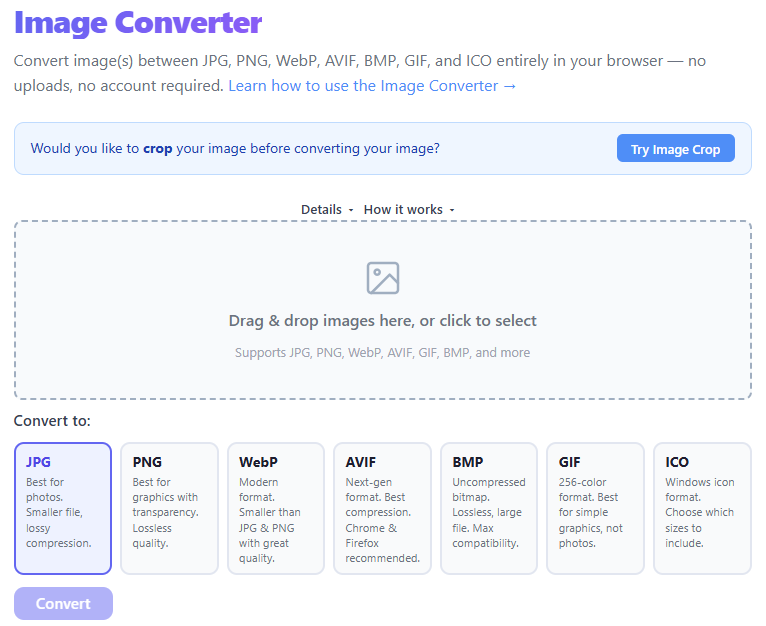
Select one or more images by dragging them in or clicking to browse.
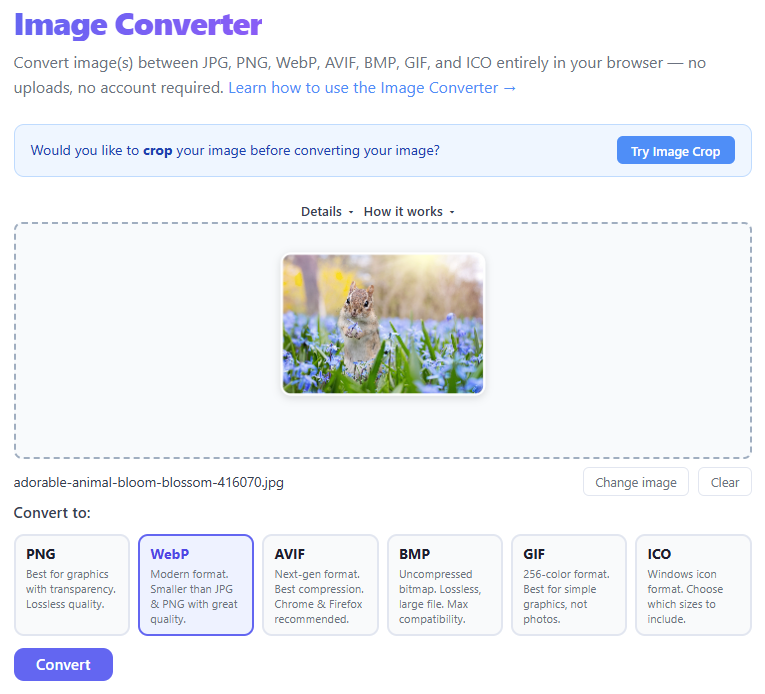
Choose the output format from the format selector buttons.
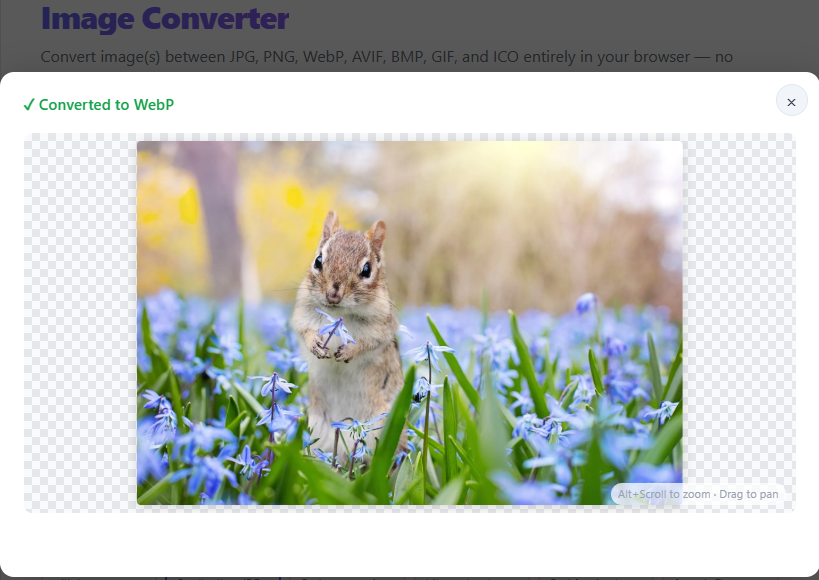
Click Convert to process the image instantly in your browser.
Download your converted image with the Download button.
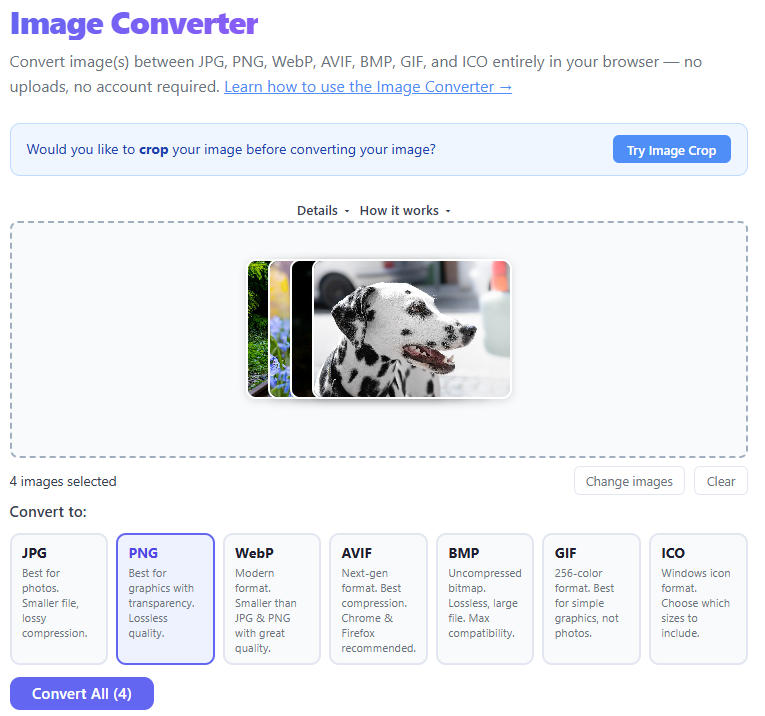
You can also convert multiple images at once by selecting more than one file.
Convert to:
Why Image Formats Matter (And How to Convert Images the Right Way)
You try to upload an image… and suddenly:
- "File format not supported"
- Image won’t open on another device
- File size is too large
These issues usually come down to one thing: image format. In this guide you’ll learn why formats exist, when to convert them, which format to choose, and how to convert without losing quality.
Why Do Image Formats Even Exist?
Different formats exist because they serve different purposes: performance (smaller file size), quality (more detail), and compatibility (works everywhere). One format rarely fits all situations.
What Is Image Conversion?
Image conversion means changing an image from one format to another (for example PNG → JPG or HEIC → JPG). The image content stays the same, but file size, quality, and compatibility can change.
When Do You Need to Convert Images?
- Upload Errors: Some platforms accept only specific formats.
- File Size Too Large: Convert heavy formats like PNG to JPG/WebP to reduce size.
- Device Compatibility: Convert HEIC from iPhones to JPG for wider support.
- Web Optimization: Modern sites prefer WebP for smaller files and faster loading.
Most Common Image Formats (Quick Guide)
Best Practices for Converting Images
- Choose format by use case — WebP for web, JPG for photos, PNG for graphics.
- Avoid repeated conversions — always convert from the original.
- Understand lossy vs lossless: JPG is lossy, PNG is lossless.
- Balance quality and size — pick a middle ground.
- Use a reliable tool that preserves quality and supports many formats.
Common Mistakes to Avoid
- Converting PNG → JPG (losing transparency)
- Repeatedly converting the same file
- Using the wrong format for the use case
- Ignoring quality settings
- Uploading huge images without optimization
Technical Architecture & Client-Side Conversion Mechanics
Our Image Converter executes client-side conversions using the HTML5 Canvas API and WebAssembly (WASM) decoders. Source files are decoded into raw uncompressed pixel byte arrays (ImageData) inside browser memory, then re-encoded into target formats like WebP, JPEG, PNG, or AVIF via native canvas encoders or WebAssembly libraries.
Lossless Quantization & Zero-Server Latency
During JPEG and WebP encoding, quantization matrices optimize discrete cosine transform coefficients to compress files efficiently. When converting RGBA images with transparency to formats that lack alpha channel support (e.g. JPEG or BMP), transparent pixels are flattened onto a solid RGB background. All operations execute strictly in your local browser RAM with zero network latency or cloud uploads.
Image Format Comparison & Specifications Table
| Format | Compression Type | Transparency Support | Browser Support | Ideal Use Case |
|---|---|---|---|---|
| WebP | Both (Lossy & Lossless) | Yes (Alpha Channel) | ~97% (All Modern Browsers) | Website performance, small file sizes |
| AVIF | Both (Next-Gen Lossy/Lossless) | Yes (Alpha Channel) | Chrome, Firefox, Safari (Modern) | Next-gen web graphics, maximum compression |
| PNG | Lossless (DEFLATE) | Yes (Alpha Channel) | 100% Universal | Logos, line art, screenshots with text |
| JPEG | Lossy (DCT) | No (RGB flattened) | 100% Universal | Complex photography, print, legacy compatibility |
| ICO | Uncompressed / PNG-compressed | Yes (Alpha Channel) | 100% Universal (Favicons) | Windows icons, browser favicons |
Frequently Asked Questions (FAQ)
What happens to transparency when converting a transparent PNG or WebP to JPEG?
Because JPEG does not support an 8-bit alpha channel, transparent background pixels are automatically flattened to solid white (#FFFFFF) during canvas rasterization.
How does client-side WebAssembly decode AVIF and WebP images on older web browsers?
When a browser lacks native WebP or AVIF encoding support, WebAssembly binaries compiled from C/C++ libraries (such as libwebp or libavif) run inside JavaScript worker threads to parse and re-encode pixel buffers.
How does the ICO multi-resolution container format embed multiple icon dimensions into one file?
The ICO header structure includes an icon directory followed by raw image byte blocks for each specified dimension (e.g. 16×16, 32×32, 48×48, 256×256 px). Browsers and operating systems pick the optimal sub-icon at runtime.
Does converting a compressed JPEG into a PNG recover lost pixel quality?
No. JPEG compression uses lossy discrete cosine transforms (DCT) that permanently discard high-frequency color data. Converting JPEG to PNG prevents further degradation but cannot restore original pixel data.
What are the browser RAM memory bounds when converting large high-resolution images?
HTML5 Canvas allocations depend on system GPU and browser limits (typically up to 16,384 × 16,384 px or ~256 MB per canvas context). Converting 50MB+ source files runs smoothly inside local 64-bit V8 engine heap memory.
How are color profiles (sRGB vs. Display P3) preserved during canvas image re-encoding?
Modern browsers automatically manage ICC color profiles. Canvas 2D contexts render pixel byte arrays within sRGB color space by default, ensuring consistent color presentation across monitors.
Can I convert multiple images at once and download them as a ZIP archive?
Yes. Our batch converter processes multiple images simultaneously and package them into a single downloadable ZIP archive using JSZip.
Are my uploaded photos sent to remote servers or stored on the cloud?
No. All file parsing, format conversion, and compression occur 100% locally in your browser memory (RAM).
Step-by-Step: How to Convert an Image
- Upload your image
- Select output format
- Adjust quality settings (if available)
- Convert the image
- Download the result
Image conversion isn't just technical — it's essential for compatibility, performance, and usability. By picking the right format you can avoid upload errors, improve speed, and keep good quality.