Merge PDF Files Online vs Adobe Acrobat
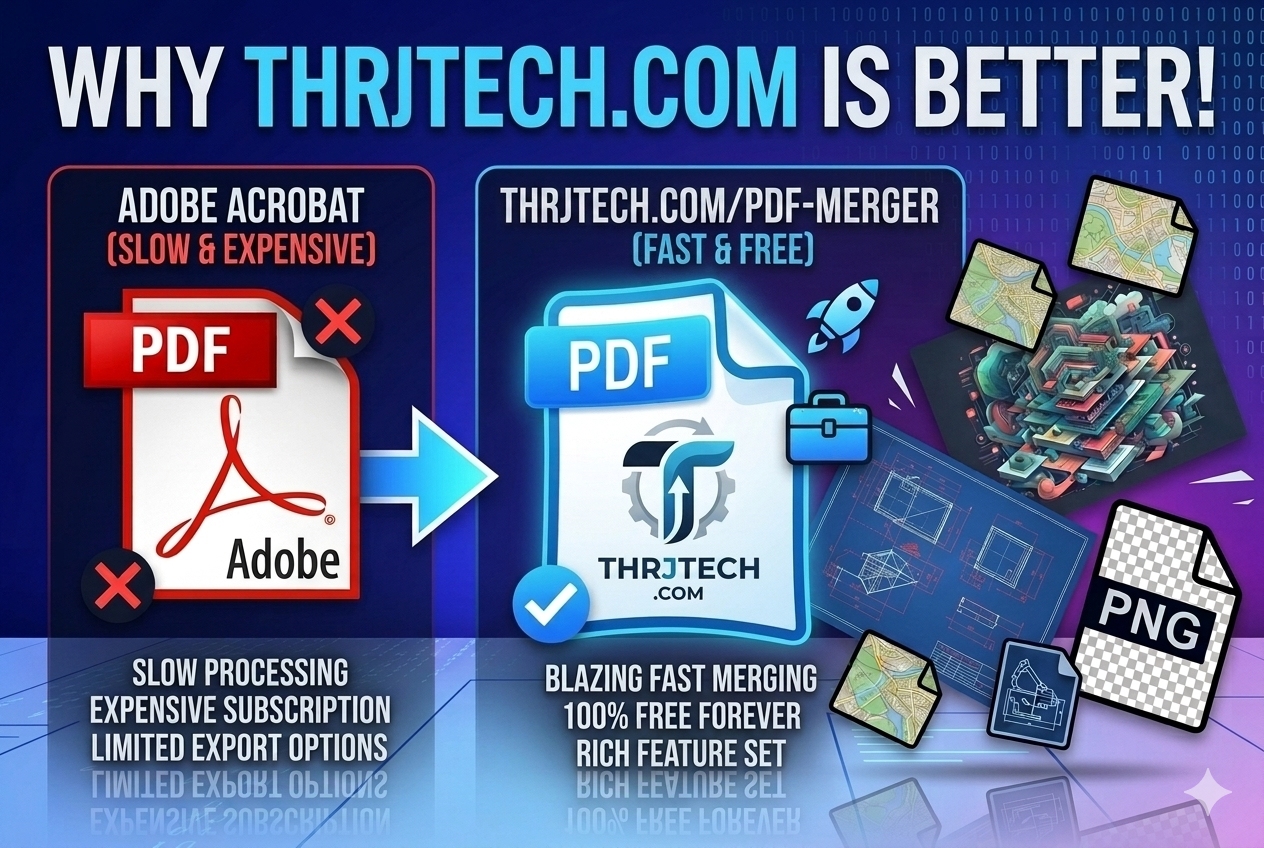
A concise comparison showing why THRJ Tech's PDF Merger is often the better choice for quick PDF merges. Open the PDF Merger
Overview
Combining PDFs is a common task: reports, invoices, and multi-part documents often need to be joined into a single file. You can use desktop tools like Adobe Acrobat, but web tools such as THRJ Tech's PDF Merger provide a faster, cheaper, and more convenient workflow for many users.
Quick Comparison
- Open the PDF Merger page:
/pdf-merger. - Drag & drop the PDFs you want to merge, or click to browse and select files.
- Arrange pages or files in the desired order.
- Click Merge and download the combined PDF.
- No installs or subscriptions required for the basic merge workflow.
Step-by-step with screenshots
1. Upload your PDFs
Drop files into the uploader or click to select them. The interface shows filenames, sizes, and a quick preview when available.
2. Arrange and merge
Reorder files by dragging them into place, then click Merge. A progress indicator appears and the merged file is ready for download when finished.
Why choose THRJ Tech's PDF Merger over Adobe Acrobat
- Free & fast for simple merges — merge PDFs without a paid Acrobat subscription for most everyday tasks.
- No installation — runs in your browser on any platform (Windows, macOS, Linux, mobile).
- Simple UI — straightforward drag-and-drop ordering without the complexity of a full desktop app.
- Privacy-first defaults — temporary storage and automatic removal reduce long-term exposure of uploaded files.
- Lower friction — ideal for quick one-off merges when you don't want to open a heavy application.
- Works on mobile — merge PDFs from your phone without installing large apps.
When Adobe Acrobat still makes sense
Adobe Acrobat is powerful for advanced workflows: OCR, form editing, redaction, and enterprise integrations. Choose Acrobat when you need deep PDF editing, compliance auditing, or batch automation across an organization.
Tips for best merge results
- Rename files with a clear order prefix (01_, 02_, etc.) if you prefer predictable ordering.
- Use the reorder UI to ensure pages appear exactly as you need them.
- Keep originals until you verify the merged output.
- For sensitive documents, prefer client-side processing or shorter retention settings.
Privacy & retention
Files uploaded to the PDF Merger are processed with privacy in mind. The merged file is made available for download and temporary copies are removed after a brief retention window. For maximum privacy, use the tool with small files so processing completes quickly in your browser.
Supported inputs
PDF files (.pdf). Multi-page documents are preserved and combined into a single PDF containing all pages in the chosen order.
FAQ
Will merging change my document quality or layout? Merging preserves original pages and layout; the tool simply concatenates pages into a single output.
Can I merge password-protected PDFs? Protected PDFs may require unlocking before merging, depending on their security settings.
Why merged PDFs matter
Combining multiple PDFs simplifies sharing, archiving, and printing. A single merged file reduces confusion, keeps related content together, and avoids attachment limits when emailing.
Final thoughts
For fast, free, and cross-platform PDF merging, THRJ Tech's PDF Merger is often the most convenient choice. Use Adobe Acrobat for advanced, enterprise-grade PDF editing or compliance workflows; use THRJ Tech when you want a quick, privacy-minded merge without extra cost or software installs.
Published by THRJ Tech