Why Is My PDF So Big? Understanding PDF Size and How Images Drive It
PDF files are convenient for sharing documents across platforms, but sometimes a seemingly simple PDF balloons into a very large file. This article explains the common causes—especially how images contribute to PDF size—so you can make informed decisions when creating, optimizing, or sharing PDFs. Try the PDF Compressor
High-level overview
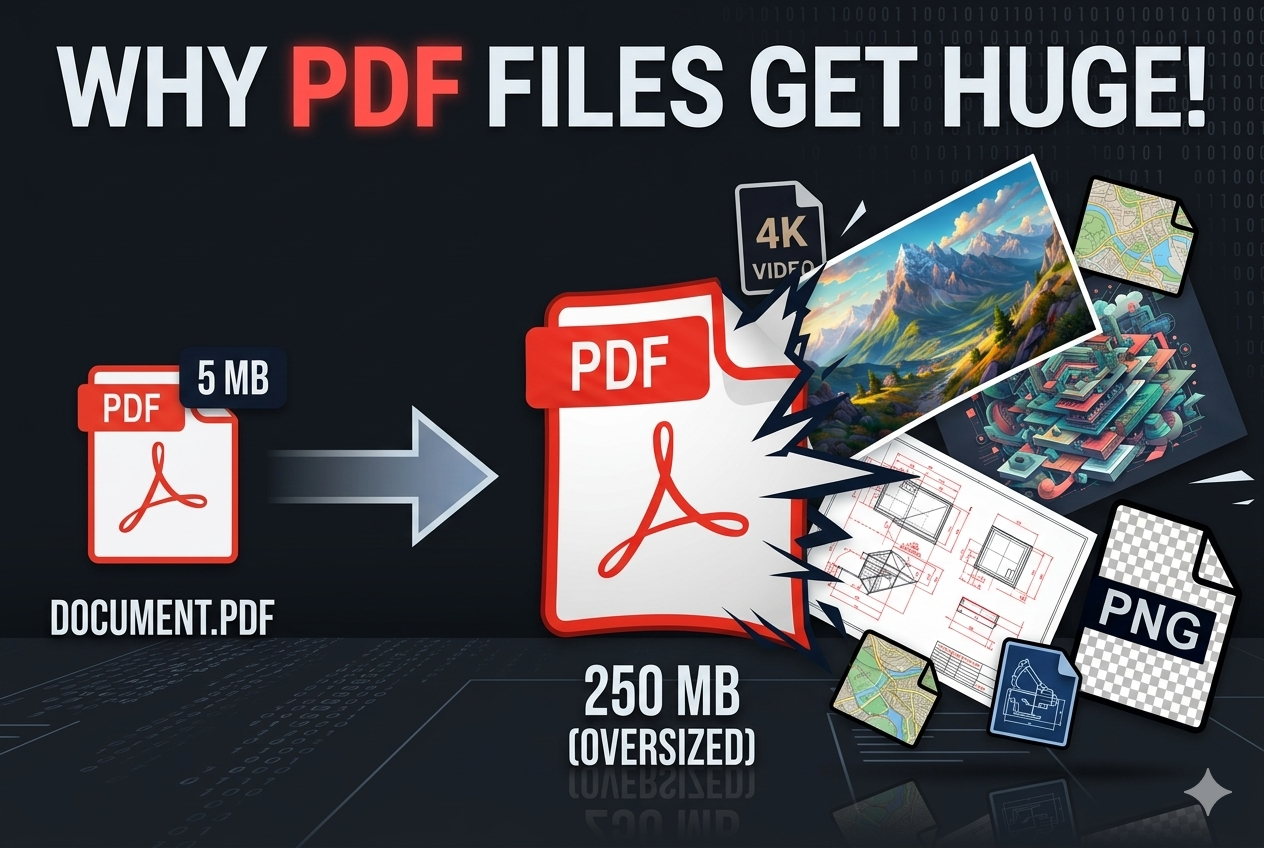
PDF file size depends on the document's contents and how those contents are encoded. Text alone is usually small, but embedded resources—images, fonts, embedded media, forms, and annotations—add bulk. Of these, images are often the largest contributors because they can contain millions of pixels and require substantial data to represent those pixels accurately.
Images: the usual suspects
Images inflate PDFs in several ways:
- Resolution (pixel dimensions): A 3000×2000 image contains 6 million pixels. Each pixel requires data, so larger dimensions mean larger files.
- Color depth: Images with higher color depth (24-bit RGB, 32-bit RGBA) require more bytes per pixel than grayscale or indexed-color images.
- Compression type: Raw or lossless formats like PNG or TIFF can be much larger than compressed JPEG images. Some compression methods are optimized for photographs (JPEG) while others are better for graphics and text (PNG).
- Multiple image copies: If the same image is embedded multiple times at different sizes or with different transformations, the PDF may store separate copies instead of reusing one resource.
- Downsampling and resampling: If a creator or exporter doesn't downsample (reduce the pixel dimensions) for the intended viewing size, the PDF will carry full-resolution images even when displayed smaller.
How images are stored inside PDFs
PDFs can embed images in various encodings. Common approaches include:
- JPEG streams: Good for photos; uses lossy compression and typically produces smaller files for photographic content.
- Flate/ZIP (zlib): Lossless compression used for images like scanned documents or graphics with limited colors.
- JBIG2: Efficient for bi-level (black-and-white) scans, often used for text-like scans to compress text areas aggressively.
- CCITT: Specialized for fax-style black-and-white images.
The encoder choice matters: a photo saved as a high-quality PNG can be many times larger than the same photo saved as a medium-quality JPEG. Conversely, diagrams with flat colors and sharp edges may compress poorly with JPEG and be better served by PNG or vector formats.
Scanned documents and multipage PDFs
Scanned pages are images of text. Each page can be a full-page photograph at scanner resolutions (300–600 DPI or higher). A 300 DPI color scan of a letter-sized page can easily be several megabytes. When you stack hundreds of scanned pages, the PDF size multiplies accordingly.
Fonts, embedded subsets, and subsets duplicated
Fonts increase size too, though usually less than images. PDFs often embed font subsets to ensure correct rendering. If many different fonts or many glyphs are used, these subsets can add up. Some tools embed entire font files instead of optimized subsets, leading to unnecessary bloat.
Transparency, layers, and blend modes
Complex visual effects—transparency, soft shadows, blending, and layers—can force rasterization or more expensive encodings, increasing size. Even vector artwork containing transparency may be flattened into bitmaps during export, turning compact vector instructions into large images.
Embedded multimedia and attachments
Embedded audio, video, or file attachments can dramatically increase a PDF's size. While not as common as images, an attached MP4 or a high-resolution image gallery can turn a small document into a massive package.
Why some PDFs look the same but have different sizes
Two PDFs that appear identical visually may differ by orders of magnitude in file size because of differences in how they were created or exported. Consider these examples:
- A Word export that embeds full-resolution images and includes several font files.
- A PDF printed to PDF using system print drivers that rasterize and embed images at printer resolution.
- A well-optimized export from a graphics tool that downsamples images, compresses them efficiently, and subsets fonts.
How to diagnose large PDFs
Start by inspecting the PDF's internal structure. Tools like Adobe Acrobat Pro, `pdfinfo`, `qpdf --qdf`, `mutool`, or online analyzers can show which objects consume the most space. Look for:
- Large image XObjects and their sizes.
- Number and size of embedded fonts.
- Embedded files or multimedia streams.
- Number of pages and per-page resource usage.
Practical ways to reduce PDF size
Here are actionable steps to shrink PDFs while preserving usable quality:
- Downsample images: Reduce image pixel dimensions to match the target viewing resolution (e.g., 72–150 DPI for screen). Avoid carrying 300–600 DPI images into a PDF meant for web viewing.
- Choose appropriate compression: Use JPEG for photos, PNG for graphics with flat colors, and JBIG2/CCITT for black-and-white scans. Adjust JPEG quality to balance size and fidelity.
- Flatten or remove unnecessary transparency: When effects aren’t necessary, flatten them or re-create the artwork without transparency to keep vector content intact.
- Subset or optimize fonts: Only embed used glyphs; avoid embedding multiple full font families if not needed.
- Remove unused resources: Some generators leave behind unused images or metadata. Stripping these can reduce size.
- Convert scanned pages to searchable PDF with OCR: For scanned documents, a lossless high-res archive plus a low-res web PDF is a good workflow. Or convert scans into mixed PDFs where text is extracted and images are downsampled.
- Create linearized (web-optimized) PDFs: This doesn't reduce file size much but improves streaming and perceived performance for large files.
Export settings to watch for
When exporting from applications, check these settings:
- Image downsampling resolution and quality.
- Compression method for color, grayscale, and monochrome images.
- Font embedding options (subset vs full).
- Whether to preserve editing capabilities or to flatten for smaller output.
A real-world checklist
Before sharing a PDF, quickly run through this checklist:
- Are images larger than they need to be? Downsample where appropriate.
- Are photos saved in an inefficient format? Re-save as JPEG with controlled quality.
- Does the document contain embedded videos or attachments? Remove or link externally if possible.
- Are fonts embedded properly and subsetted?
- Would converting scanned pages to searchable text and low-res images work?
Conclusion
Images are the dominant cause of large PDF files because they carry the most raw data. By understanding how images are encoded, choosing appropriate compression and resolution, and applying a few optimization steps, you can often reduce PDF sizes drastically without sacrificing usability. When in doubt, keep a high-quality master copy and export smaller, optimized versions for distribution.
Published by THRJ Tech