Image Rotator Guide — Create Smooth Image Rotations in Your Browser
The Image Rotator is a lightweight, browser-based tool for rotating, previewing, and exporting images with precision. Whether you need to straighten a scanned photo, rotate portrait shots to landscape, or prepare multiple images for a gallery, this guide walks through the UI, features, and best practices so you can get pixel-perfect results quickly.
Try the Image Rotator at image-rotator to try it live.
What Is an Image Rotator?
An image rotator is a simple utility that rotates raster images by arbitrary angles and optionally re-exports the rotated result. Unlike full photo editors, rotators focus specifically on rotation while preserving quality, aspect ratio, and composition controls such as canvas background and trimming options.
In practical workflows, rotating is one of the most common edits: images shot on mobile devices sometimes capture the wrong orientation, scanned documents need deskewing, and layout assets require exact rotations to match design grids. The Image Rotator tool in THRJ's toolset offers an accessible, privacy-first way to perform these edits directly in your browser without uploading your files.
Key Features
- Arbitrary rotation: Rotate by any angle with sub-degree precision or use quick presets (90°, 180°, 270°).
- Canvas trimming: Choose whether to keep the original canvas size, auto-trim to visible pixels, or use a custom canvas color for transparent areas.
- Live preview: See changes instantly with a high-fidelity canvas preview before exporting.
- Batch-friendly: Rotate multiple images one after another without reloading the page — ideal for preparing galleries.
- Export options: Download as PNG (lossless) or convert to JPEG via the Image Converter tool for smaller files.
User Interface Walkthrough
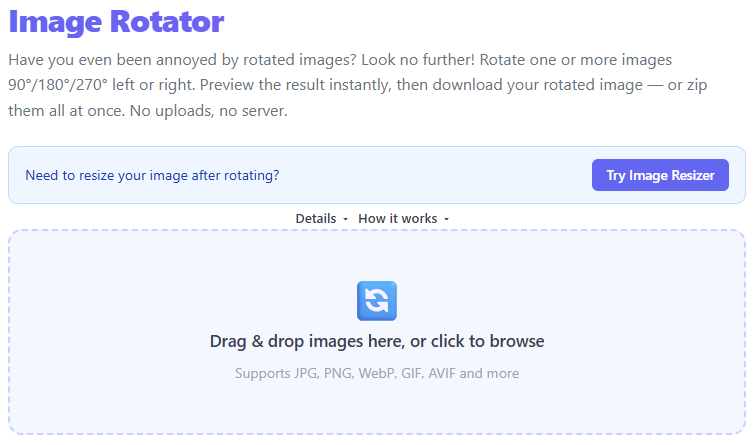
The rotator UI is intentionally compact and focused. The left column contains controls and presets; the right column displays a large preview canvas with zoom and pan controls. Common actions are grouped at the top for quick access.
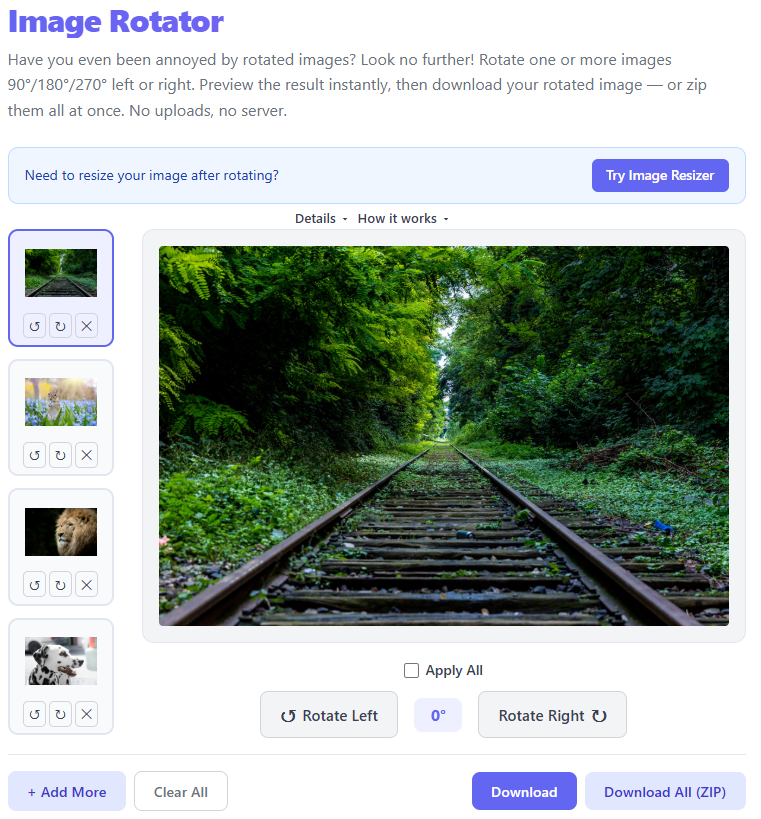
- File input: Drag files into the drop zone or click to open the file picker. Multiple formats are supported (JPEG, PNG, WebP, GIF — GIFs are flattened to a single frame on export).
- Rotation slider: Use the slider for fast adjustments or enter a numeric angle for exact rotations. The UI supports negative angles for counter-clockwise rotation and shows both angle and normalized preview.
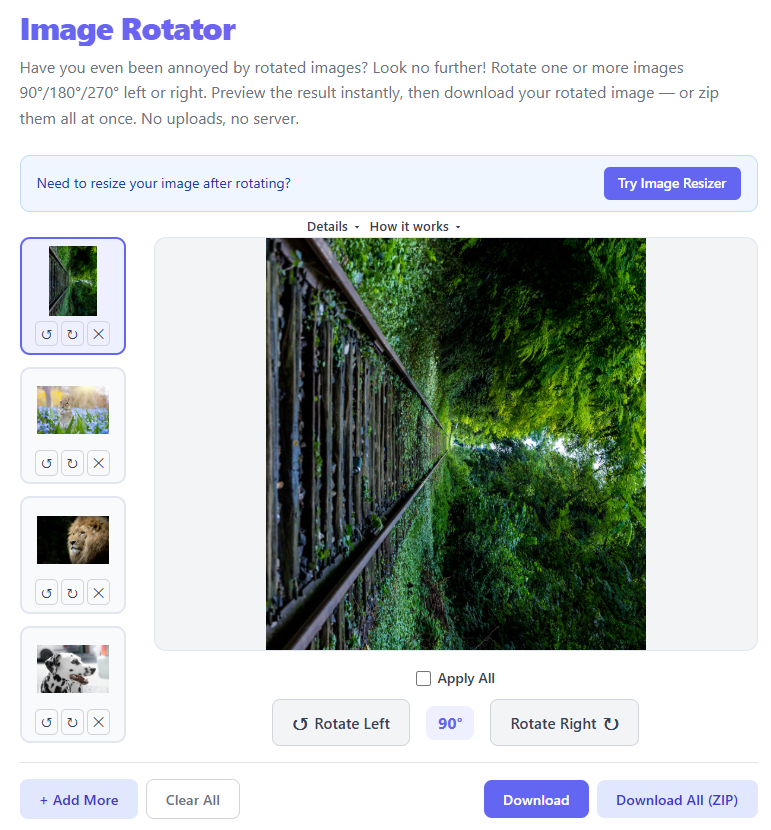
- Presets: One-click rotate buttons are provided for 90°, 180°, and 270° rotations — useful for common corrections from camera EXIF orientation mismatches.
- Canvas and background: Choose to keep the canvas, auto-crop to visible pixels, or fill exposed corners with a chosen background color (useful when rotating non-square images).
- Export: Click Export to generate a rasterized PNG. For smaller files, use the Image Converter tool to convert to JPEG after export.
Step-by-step Example: Straightening a Photo
This example shows how to straighten a horizon that appears tilted after capture.
- Open the Image Rotator and add your photo via drag & drop.
- Use the rotation slider to roughly align the horizon. As you move the slider, the preview updates instantly.
- Fine-tune the angle using the numeric input to reach sub-degree accuracy (for example, -1.7°).
- Choose Auto-trim to remove transparent corners; alternatively set a background color if you want preserved canvas edges.
- Zoom the preview to 100% and inspect edges. If satisfied, click Export and save your PNG.
Tips for Best Results
- Use high-resolution sources: Rotations can introduce resampling artifacts. Starting with higher-resolution images preserves detail after export.
- Export at a larger canvas if planning to crop later: If you expect to crop or retouch the rotated image, export at a larger pixel dimension to leave room for adjustments.
- Prefer PNG for quality: PNG preserves pixel fidelity and is preferred for images with sharp edges or text. Convert to JPEG only when file size matters more than absolute losslessness.
- Check image metadata: Many cameras embed EXIF orientation tags. If images display incorrectly after import, use the rotate presets to correct the visible orientation before exporting.
Batch Workflow and Automation
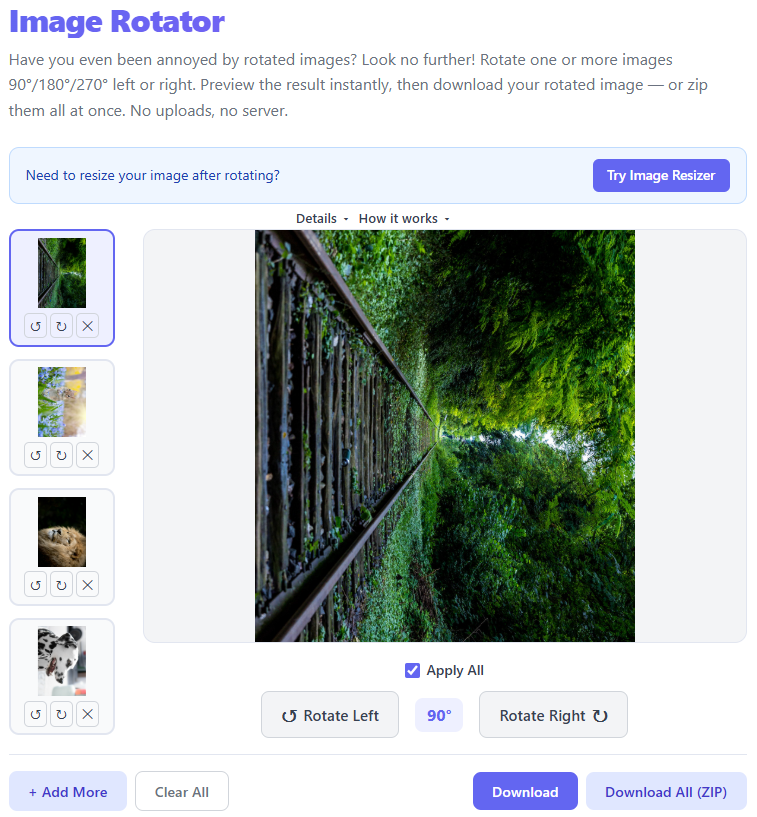
If you have a set of images that all need the same rotation (for example, a batch of scanned pages), the rotator's workflow minimizes repetition:
- Load the first image, set the desired rotation and canvas policy.
- Export and then use the Next button to load the subsequent file while preserving your current settings.
- Repeat export for each file — the tool remembers the last used rotation and canvas choice to speed the process.
Accessibility and Performance
The Image Rotator is built to be responsive and accessible:
- Keyboard accessible controls: Slider and numeric inputs can be operated via keyboard for precise adjustments.
- Screen-reader friendly: Form elements include appropriate labels and ARIA attributes to improve usability for assistive technologies.
- Performance optimizations: Heavy image processing runs in a web worker (when available) so the UI remains responsive while generating previews or export data.
Frequently Asked Questions
Can I rotate animated GIFs or multi-frame WebP? Animated sources are flattened to a single frame during rotation and export. Use a dedicated animation editor for frame-preserving edits.
Will rotating degrade my image quality? Any resampling operation may change pixel values. Use a higher-resolution source and export to PNG to minimize visible degradation.
Is my image uploaded anywhere? No. All processing happens locally in your browser unless you explicitly upload or share a file using a separate tool or integration.
Advanced Ideas and Integrations
Pair the Image Rotator with other THRJ tools for richer workflows:
- Image Converter: Convert exported PNGs to JPEGs for smaller web-friendly assets.
- Image Resizer: Resize rotated images while preserving composition for responsive delivery.
- Meme Generator: Add captions or overlays to a rotated canvas for social sharing.
Programmatic integrations: If you need headless or server-side rotations in bulk, consider using an automated image pipeline with tools like ImageMagick or Sharp. The browser rotator is optimized for manual, privacy-sensitive edits rather than high-throughput server transforms.
Published by THRJ Tech