When to use PDF Merger and PDF Splitter
A clear, practical guide explaining what a PDF Merger and a PDF Splitter are, when to pick each tool for common tasks, and how to use them effectively in real-world workflows. This expanded guide includes concrete examples, step-by-step workflows, troubleshooting tips, and privacy considerations so you can choose the right approach and avoid common mistakes.
What are they?
PDF Merger: combines two or more PDF files into a single document while preserving page order, visual fidelity, and embedded metadata. Use a merger when you want to reduce the number of files you manage, present a cohesive document to reviewers, or create a single file for submission, printing, or archiving. Merging is also useful when assembling materials from multiple contributors (e.g., proposals, reports, or scanned pages) into a single package.
PDF Splitter: breaks a PDF into smaller PDFs — by individual pages, page ranges, or logical groups (for example, splitting every ten pages). Use a splitter when you only need to share or process parts of a large document, when removing confidential pages, or when preparing smaller files for email and upload. Splitters are handy for extracting signatures, isolating attachments, or turning a long scanned book into chapter-sized files.
When to use PDF Merger
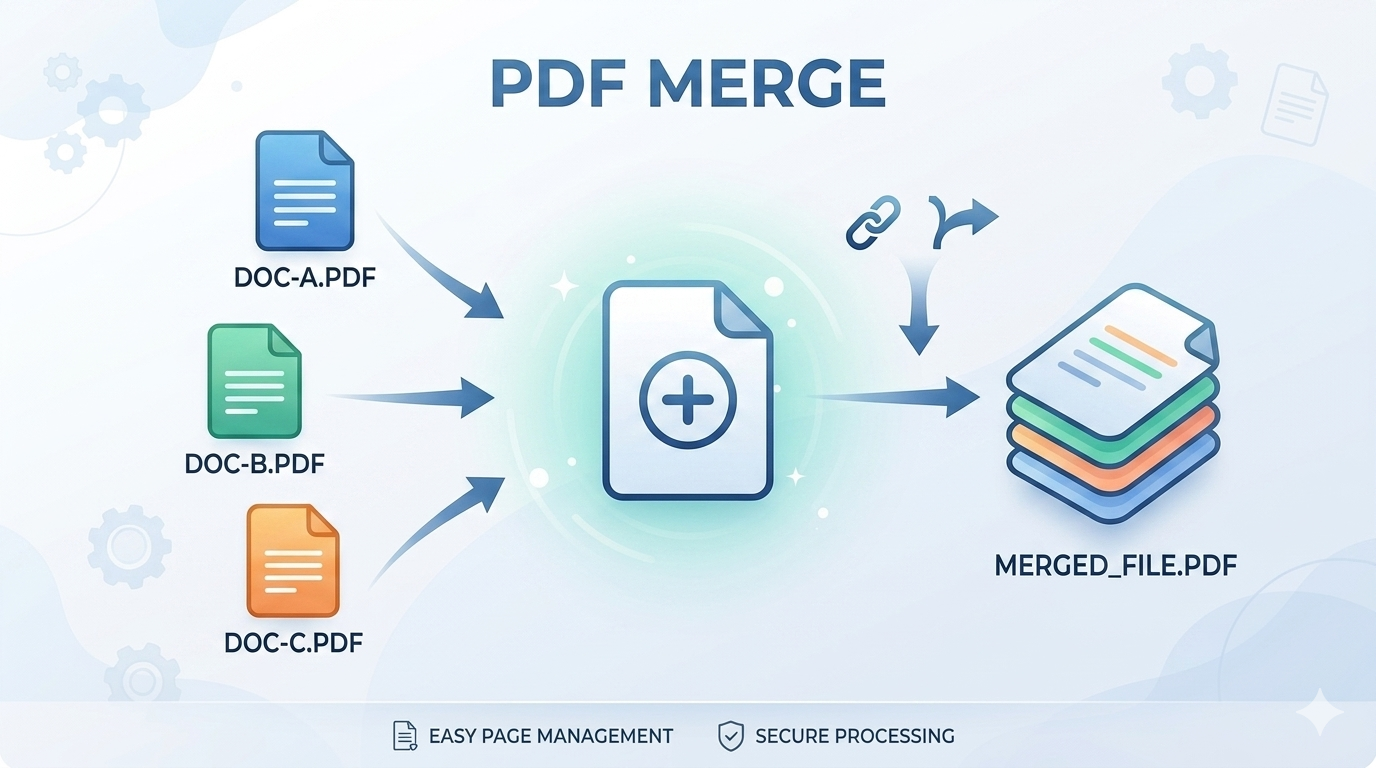
- Combine related documents: Merge reports, invoices, or chapters into one file so recipients don't have to open multiple attachments. Example: combine a cover letter, resume, and portfolio into a single submission for job applications.
- Prepare a single submission: When an application, client, or print shop requires a single PDF (e.g., legal filings, grant proposals, or manuscript submissions), merging avoids missed pages and ensures the required order.
- Create a portfolio: Assemble images, project summaries, and references in one file that displays properly across devices and preserves layout.
- Maintain order and metadata: Merge files in a deliberate sequence and confirm metadata (title, author) if you want a consistent document header or for automated processing.
- Archive versions: Create a single archive PDF that represents the final, approved deliverable for long-term storage or compliance records.
When to use PDF Splitter
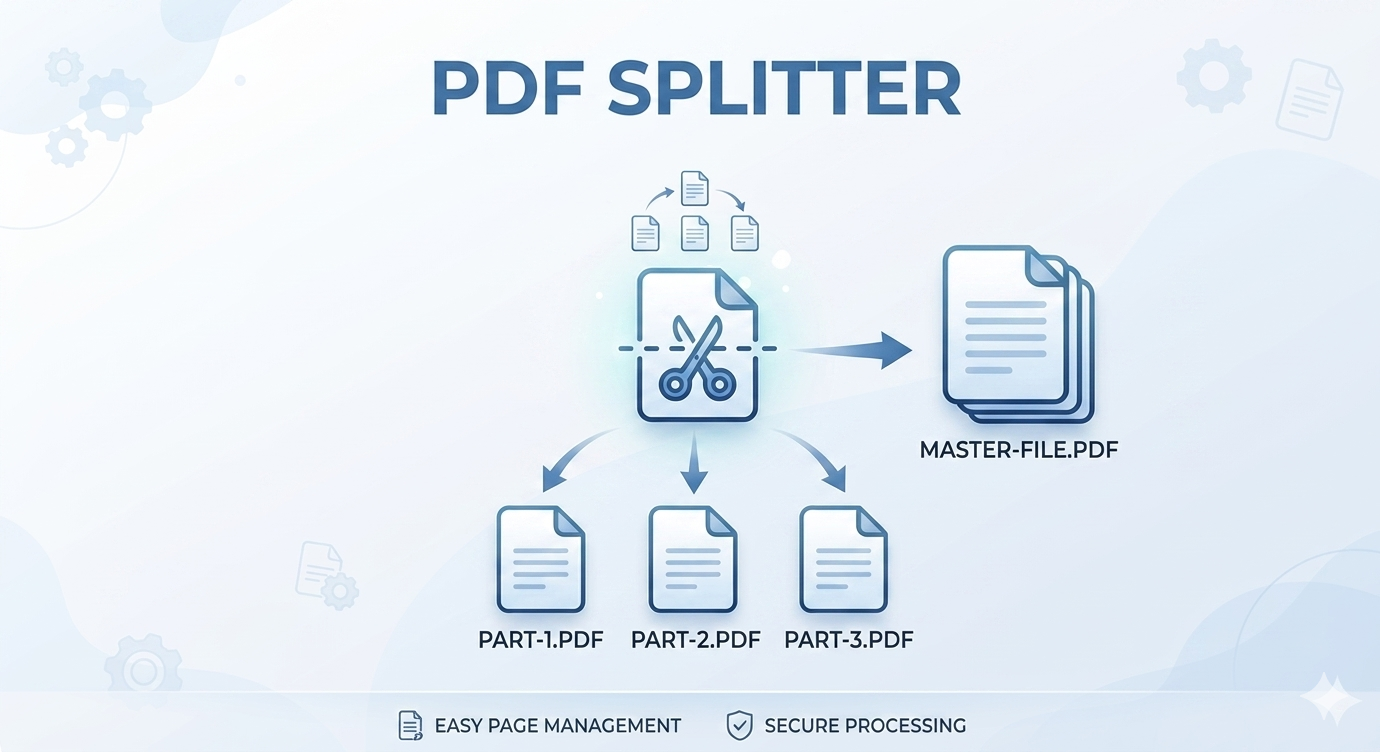
- Extract pages: Share only the pages that are relevant, such as a single chapter, appendix, or signed page. Example: send just the signed signature page to accounting instead of the full contract.
- Remove or isolate sensitive pages: Split and discard pages with private data before sharing public records. Alternatively, extract the sensitive pages to a separate, secure file for review.
- Split for smaller uploads: Large PDFs can exceed attachment or upload limits; splitting into parts helps you meet size constraints while keeping content organized.
- Create individual documents: Convert a multi-form PDF into single-form files for distribution, or split a scanned document into chapters for easier navigation and storage.
- Parallel processing: When multiple people need to work on different parts of a single PDF, split it into sections so each person can edit or review separately and later re-merge if needed.
Quick steps
- Open the tool: visit /pdf-merger to combine files or /pdf-splitter to split a document. Both tools provide previews so you can confirm pages visually.
- Upload your PDF(s) or drag-and-drop files into the tool. For large batches, check your browser's upload limits and prefer wired connections for stability.
- For merging: arrange files and individual pages in the desired order. Use thumbnails or page numbers to reorder quickly, then click Merge. Optionally add bookmarks or a table of contents if your tool supports it.
- For splitting: define page ranges (e.g., 1-3, 4, 5-8), select single pages to extract, or use pattern splits (every N pages). Preview the split outputs before confirming.
- Download the resulting PDF(s) and verify that pages, order, and file size are correct. Keep the originals until you confirm the outputs meet your needs.
Tips and best practices
- Always preview results before sharing to avoid missing pages, incorrect page order, or blank pages from scans. Use thumbnail view where available.
- When merging many large files, consider compressing the final PDF if file size matters (for email, archives, or upload limits). Test compression settings to preserve legibility for scanned text.
- Keep originals until you're sure the merged and split files are correct and backed up. Versioned filenames help (e.g., `report-final-v1.pdf`).
- If privacy is a concern, prefer local tools or trusted privacy-focused services. Check service terms about retention and deletion of uploaded files—some online tools keep files for a short time, others may retain them longer.
- Use descriptive filenames and include page ranges when splitting (for example `invoice_2026_pages_1-3.pdf`) so recipients know exactly what the file contains.
- When preparing documents for printing, check page size, orientation, and margins after merging to avoid layout surprises.
Privacy and security considerations
Before uploading PDFs with sensitive content (financial, medical, legal), confirm the tool's retention policy and encryption. If you must handle highly confidential files, use an offline tool or workstation that never sends files to external servers. If using online tools, prefer services that explicitly delete uploaded files after processing and support TLS during transfer.
Troubleshooting and common pitfalls
- Blank pages after scanning: If scans contain blank pages, remove them before merging or use the splitter to exclude them.
- OCR and searchable text: Merging does not perform OCR. If you need searchable text across pages, run OCR on scans first, then merge the resulting searchable PDFs.
- Bookmarks and links: Some mergers preserve bookmarks and internal links, others flatten them. If bookmarks matter, test the chosen tool first.
- Different page sizes: Mixed page sizes can cause unexpected viewers' behavior. Consider normalizing page sizes if consistent output is required for printing.
Common use cases
Merging examples: Sending a complete project packet, combining scanned receipts, building a PDF portfolio.
Splitting examples: Sharing a specific chapter from a book, extracting signed pages, separating a multi-form document into individual forms.
Exporting and formats
Merged and split PDFs remain standard PDF files compatible with readers, printers, and submission portals. Use a compressor or converter if you need different formats (PDF/A, reduced-size PDF, or image sequences).
Frequently asked questions
Can I reverse a split? You can usually re-merge split files using a PDF Merger, but metadata and bookmarks may not be restored exactly. Keep the originals until you're confident the re-merged file matches your needs.
Will merging change quality? Merging itself preserves original page content and images. However, optional post-merge compression or conversion steps can reduce image quality or alter embedded fonts—test settings before applying compression broadly.
What about accessibility? Merged PDFs inherit the accessibility features (tags, alt text) present in source files. If accessibility is a requirement, validate the final merged PDF with an accessibility tool and add or fix tags as needed.
Alternatives and advanced workflows
If you work with PDFs regularly, look for tools that support batch processing, command-line automation, or API access so you can integrate merging and splitting into repeatable workflows (for example, nightly archives or automated report generation). For enterprise use, server-side libraries (Ghostscript, QPDF, PyPDF2, PDFBox) enable automated, scalable operations without manual uploads.
Published by THRJ Tech